 LensAI
Getting Started with LensAI
Make your first LLM API call proxied through LensAI and view results in your dashboard within minutes
Welcome to LensAI! This guide will help you make your first LLM interaction proxied through LensAI and view the results in your dashboard within minutes.
What is LensAI?
LensAI is a lightweight API proxy that tracks and monitors your LLM requests and responses across multiple providers (OpenAI, Anthropic, and Google Gemini). It captures detailed usage data including token consumption, model usage, and tool calls, enabling you to monitor costs, analyze usage patterns, and maintain visibility into your AI application's behavior.
It also provides means to capture your LLM App key revenue and value related metrics that can help you to understand your pricing and the value your app provides to your customers better.
Key Features
- Comprehensive Tracking: Automatically captures all LLM requests, responses, and tool/function calls
- Usage Monitoring: Tracks token usage, costs, and other key metrics across all providers
- Goals & Outcomes: Tracks how customers reach their goals and ties each outcome to its dollar value
- Multi-Provider Support: Works with OpenAI, Anthropic Claude, and Google Gemini
- Real-time Dashboard: View all your API calls, metrics, and analytics at Dashboard
Prerequisites
Before you begin, you'll need:
- LensAI Account: Sign up at here
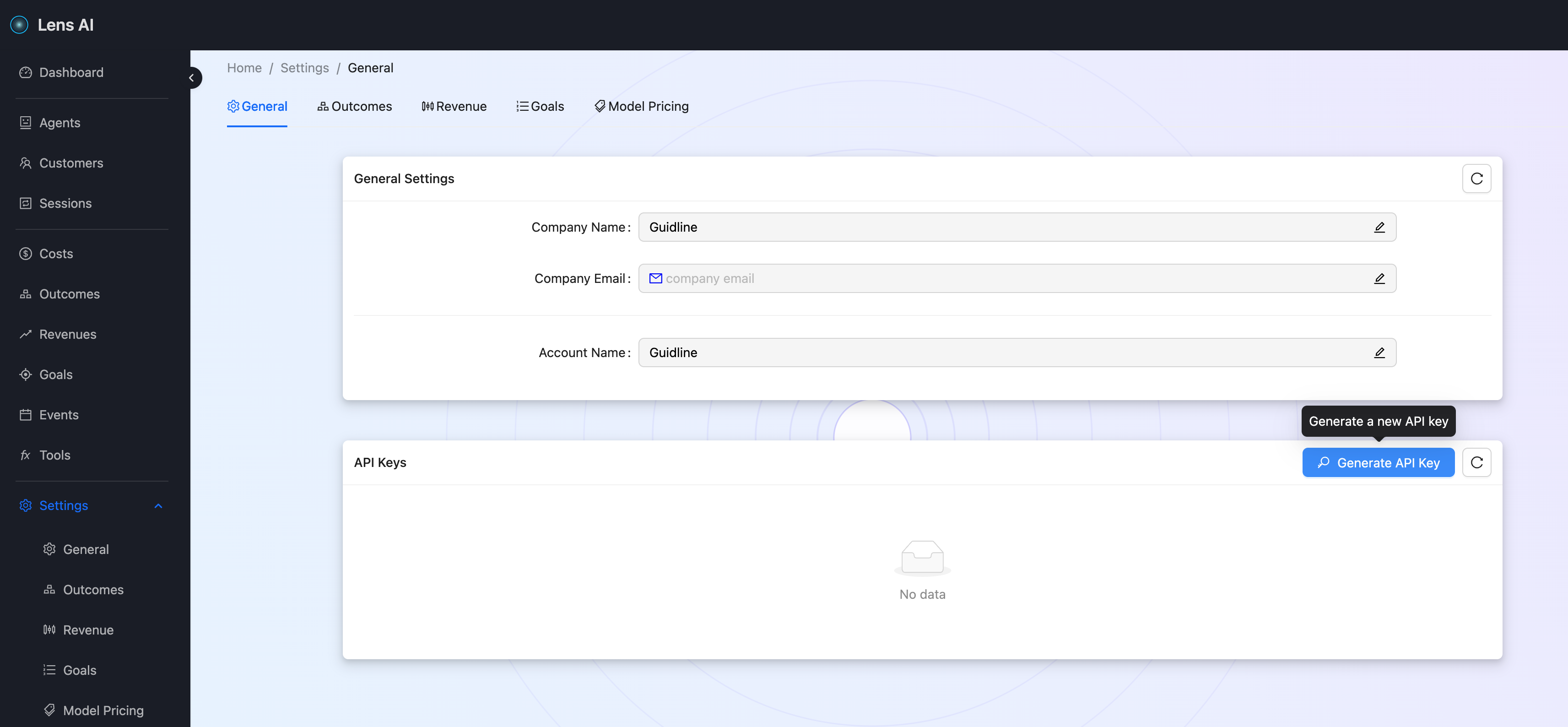
Get your API key from Settings / API Keys
- Provider API Key: At least one LLM provider API key
- OpenAI: Get your key from platform.openai.com
- Anthropic: Get your key from console.anthropic.com
- Google Gemini: Get your key from ai.google.dev
Make Your First Request
Prepare Composite API Key
Use the this proxy endpoint as API a baseUrl for LLMs SDK/Settings:
https://proxy.getlens.aiLensAI uses a composite key format that combines your provider key and LensAI key:
PROVIDER_KEY$LENSAI_KEYExample:
sk-proj-abc123xyz456$lens-key-789defSend Request
OpenAI
Set environment variables:
export OPENAI_KEY="YOUR_OPENAI_KEY"
export LENSAI_KEY="YOUR_LENSAI_KEY"curl -X POST "https://proxy.getlens.ai/v1/llm/openai/chat/completions" \
-H "Authorization: Bearer $OPENAI_KEY\$$LENSAI_KEY" \
-H "Content-Type: application/json" \
-d '{
"model": "gpt-4o-mini",
"messages": [
{
"role": "user",
"content": "Say hello!"
}
]
}'Google Gemini
Set environment variables first:
export GEMINI_KEY="YOUR_GEMINI_KEY"
export LENSAI_KEY="YOUR_LENSAI_KEY"curl -X POST "https://proxy.getlens.ai/v1/llm/gemini/v1beta/models/gemini-2.5-flash:generateContent" \
-H "x-goog-api-key: $GEMINI_KEY\$$LENSAI_KEY" \
-H "Content-Type: application/json" \
-d '{
"contents": [
{
"parts": [
{
"text": "Say hello!"
}
]
}
]
}'Anthropic (Claude)
Set environment variables first:
export ANTHROPIC_KEY="YOUR_ANTHROPIC_KEY"
export LENSAI_KEY="YOUR_LENSAI_KEY"curl -X POST "https://proxy.getlens.ai/v1/llm/anthropic/v1/messages" \
-H "x-api-key: $ANTHROPIC_KEY\$$LENSAI_KEY" \
-H "anthropic-version: 2023-06-01" \
-H "Content-Type: application/json" \
-d '{
"model": "claude-sonnet-4-5-20250929",
"max_tokens": 1024,
"messages": [
{
"role": "user",
"content": "Say hello!"
}
]
}'Get the Response
Example response:
{
    "id": "chatcmpl-Cfl4cbcyy7M3yiaL0NzigWCV7W7wv",
    "object": "chat.completion",
    "created": 1764068434,
    "model": "gpt-4o-mini-2024-07-18",
    "choices": [
{
    "index": 0,
    "message": {
    "role": "assistant",
    "content": "Hello! How can I assist you today?",
    "refusal": null,
    "annotations": []
},
    "logprobs": null,
    "finish_reason": "stop"
}
    ],
    "usage": {
    "prompt_tokens": 10,
    "completion_tokens": 9,
    "total_tokens": 19,
    "prompt_tokens_details": {
    "cached_tokens": 0,
    "audio_tokens": 0
},
    "completion_tokens_details": {
    "reasoning_tokens": 0,
    "audio_tokens": 0,
    "accepted_prediction_tokens": 0,
    "rejected_prediction_tokens": 0
}
},
    "service_tier": "default",
    "system_fingerprint": "fp_560af6e559"
}
Congratulations! You've made your first request through LensAI 🎉.
View Results in Dashboard
- Open the Dashboard
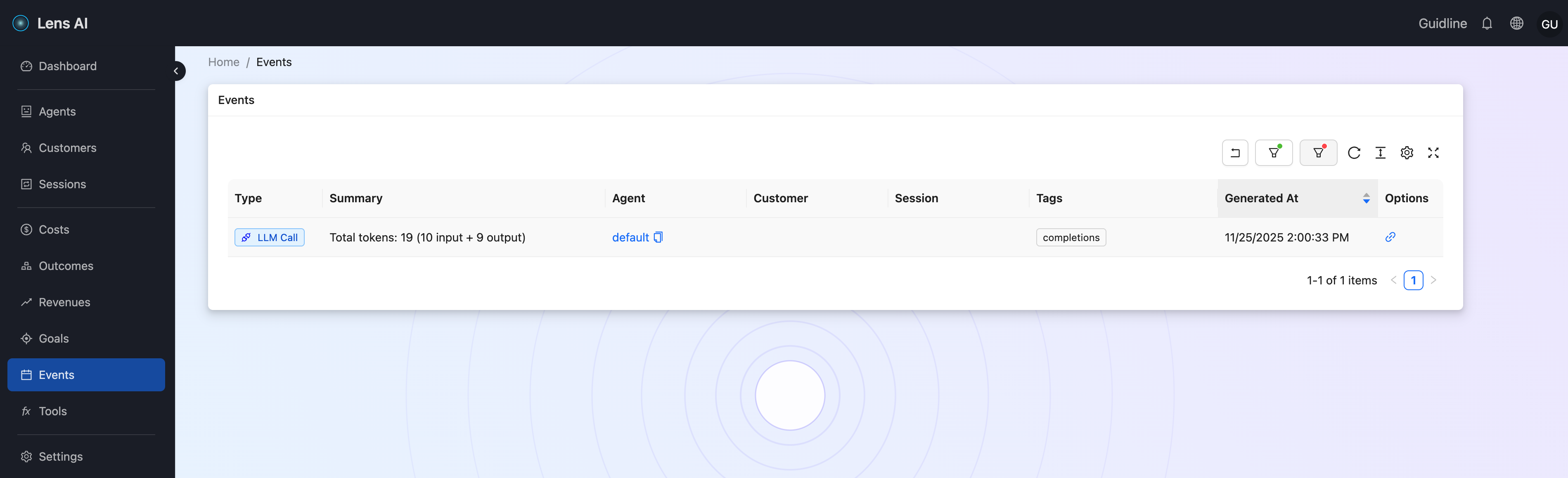
You should see the logged request with details such as request type, token usage, agent/customer/session IDs, tags, timestamp.
- Click "View Event Details" in the Options column
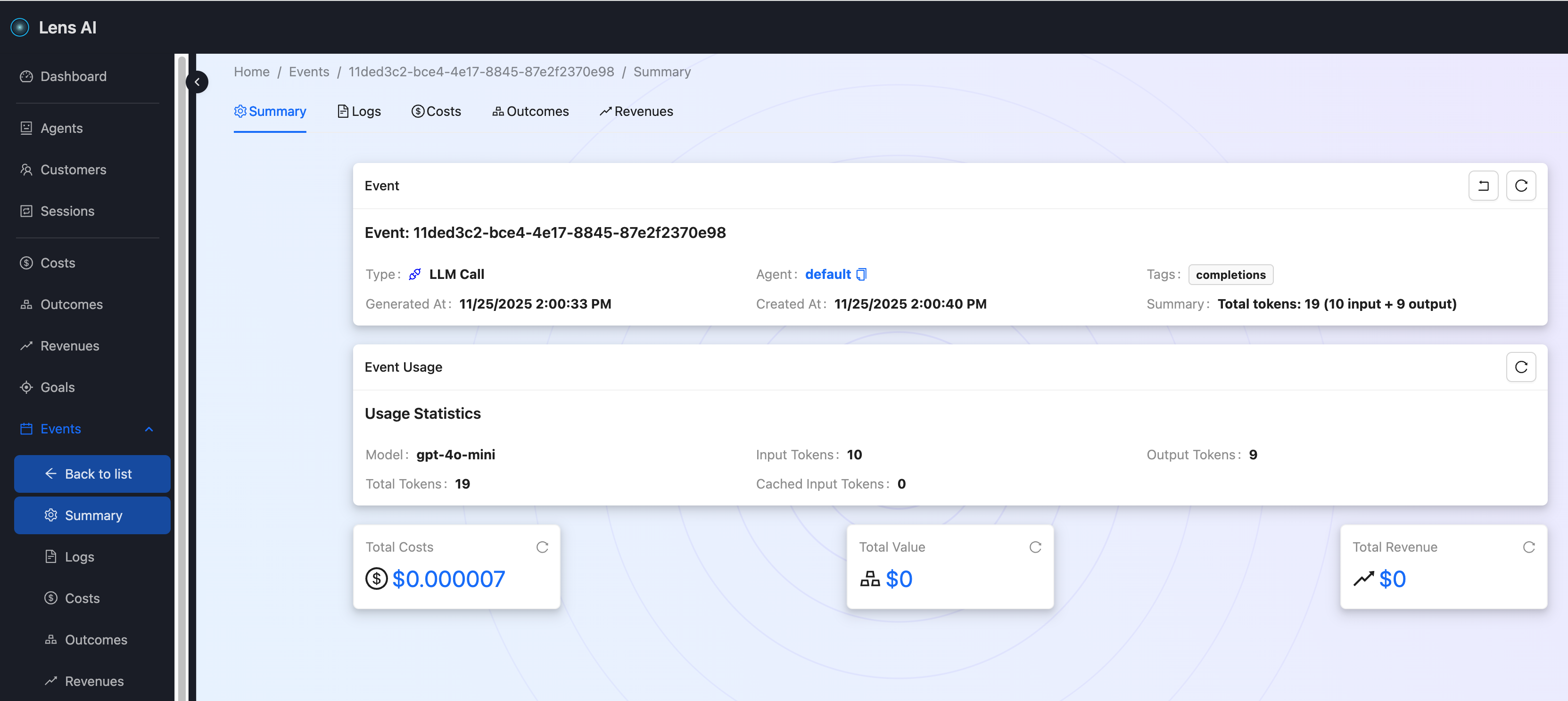
You should see a summary of the request, including: ID, type, tags, creation and generation dates, model name, and usage information. The total cost of the request is calculated based on the usage data and the model's pricing policy.
- Click on the Logs tab
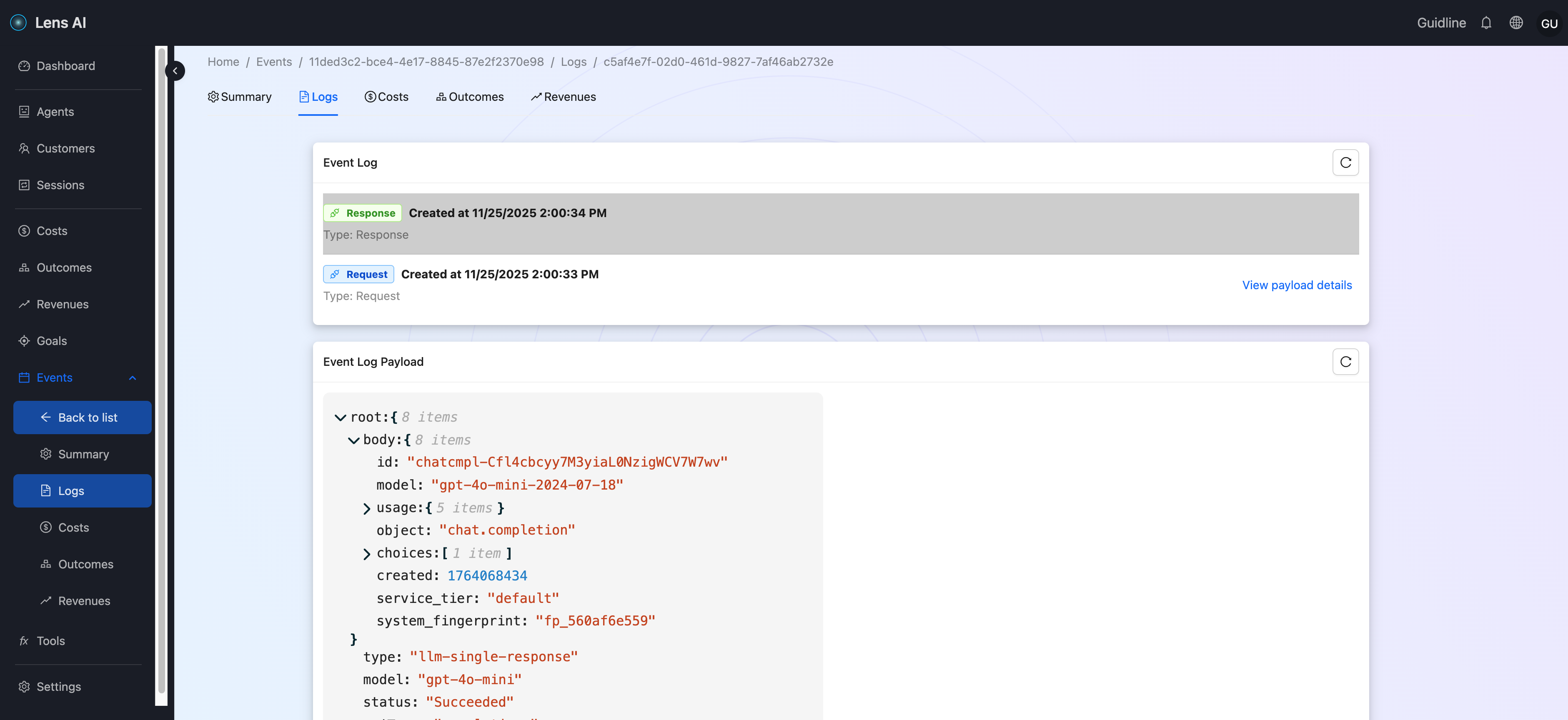
You should see all events associated with this request, and you can view the detailed payload for each event.
- Click on the Costs tab
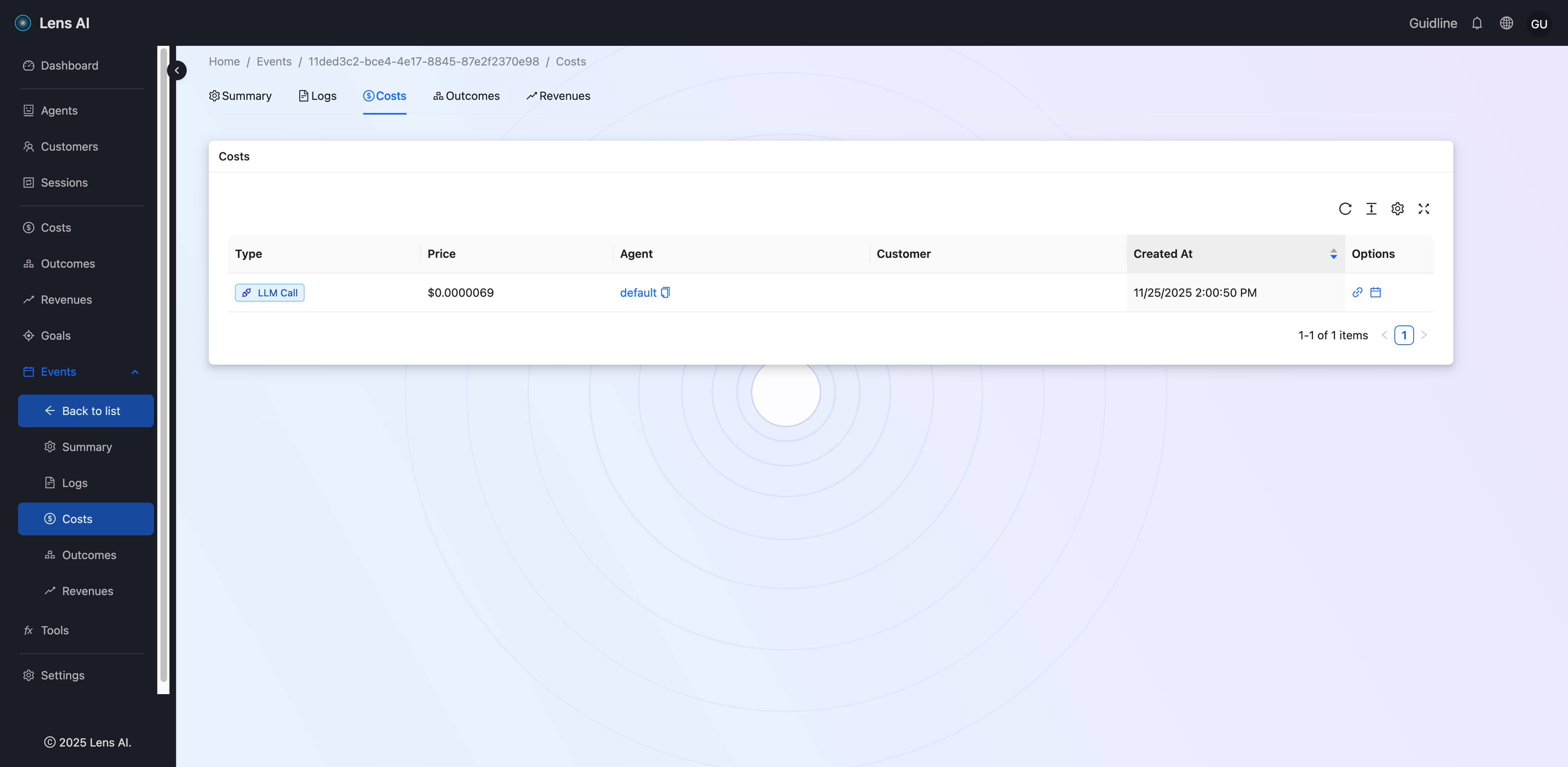
You should see detailed information about the cost of requests. The Outcomes and Revenues tabs are described below.
Summary
Great, we’ve taken the first steps and learned how to:
- Make your first proxied request to an LLM
- Calculate the cost of a call based on the selected model and provider’s pricing
- View your detailed data in the Dashboard
Advanced Tracking with Composite Keys
LensAI works not only with LLM Agents, but also with LLM Apps. You can get a more detailed breakdown of information across different agents (instances), the users of these agents (instances), and their sessions. To do this, you need to pass the appropriate identifiers as part of the key or metadata. If you do not pass any of these identifiers, LensAI will create default values and use them.
How to pass the metadata please check the Proxy Authentication guide.
Send Request
Composite API format including additional parameters:
PROVIDER_KEY$LENSAI_KEY[$AGENT_KEY][$CUSTOMER_KEY][$SESSION_KEY]Example:
curl -X POST "https://proxy.getlens.ai/v1/llm/openai/chat/completions" \
  -H "Authorization: Bearer $OPENAI_KEY\$$LENSAI_KEY\$agent-chatbot\$customer-acme\$session-xyz" \
  -H "Content-Type: application/json" \
  -d '{
    "model": "gpt-4o-mini",
    "messages": [
      {
        "role": "user",
        "content": "Say hello!"
      }
    ]
  }'
View Tagged Results in Dashboard
Navigate to "Events"
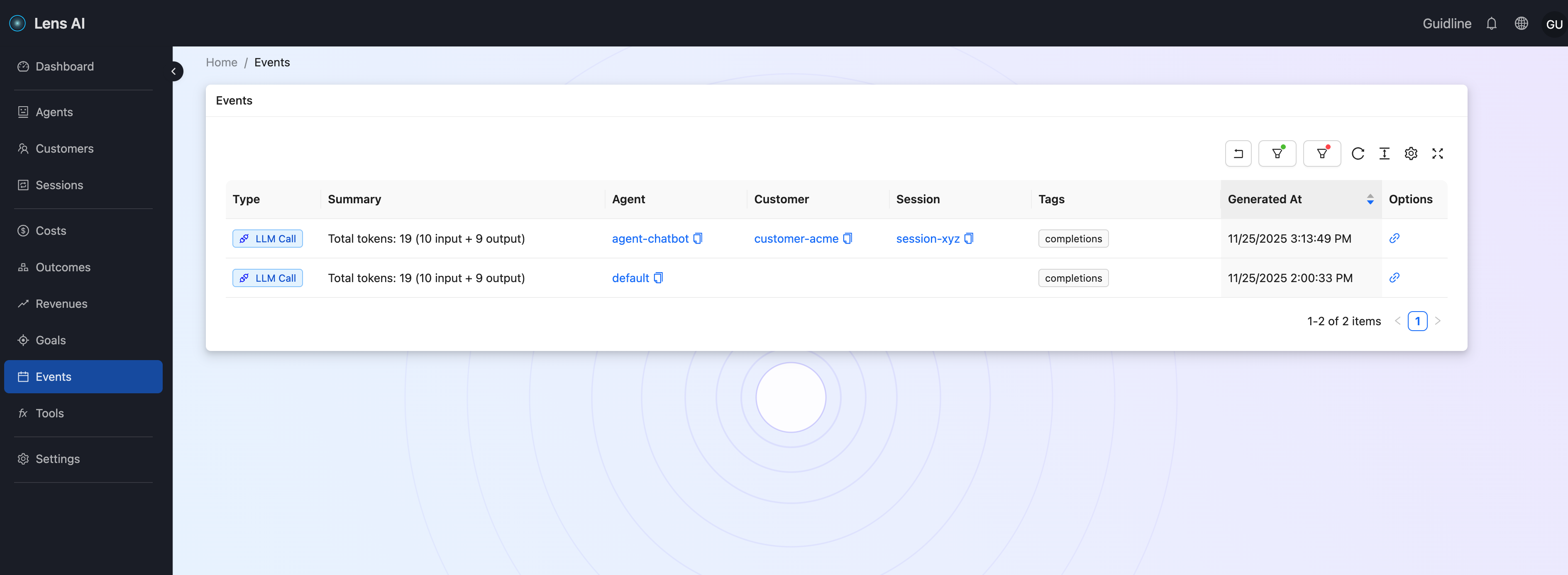
You should see that your request is tagged with the agent, customer, and session that you passed as additional parameters in the composite key. Now you can filter requests by these fields.
Navigate to "Agents"
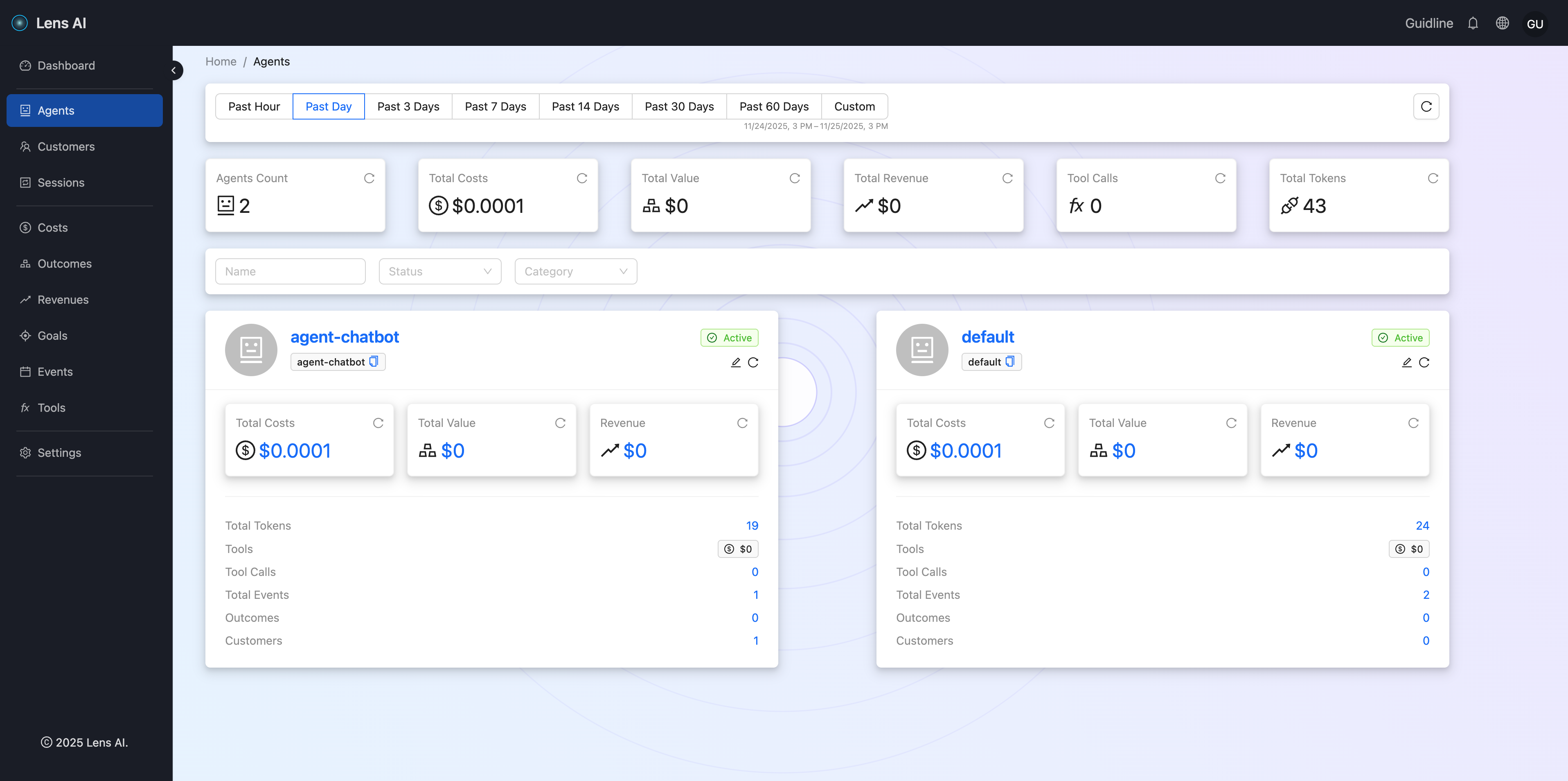
You should see detailed agent usage information for each agent. Click to the agent to see more detailed information
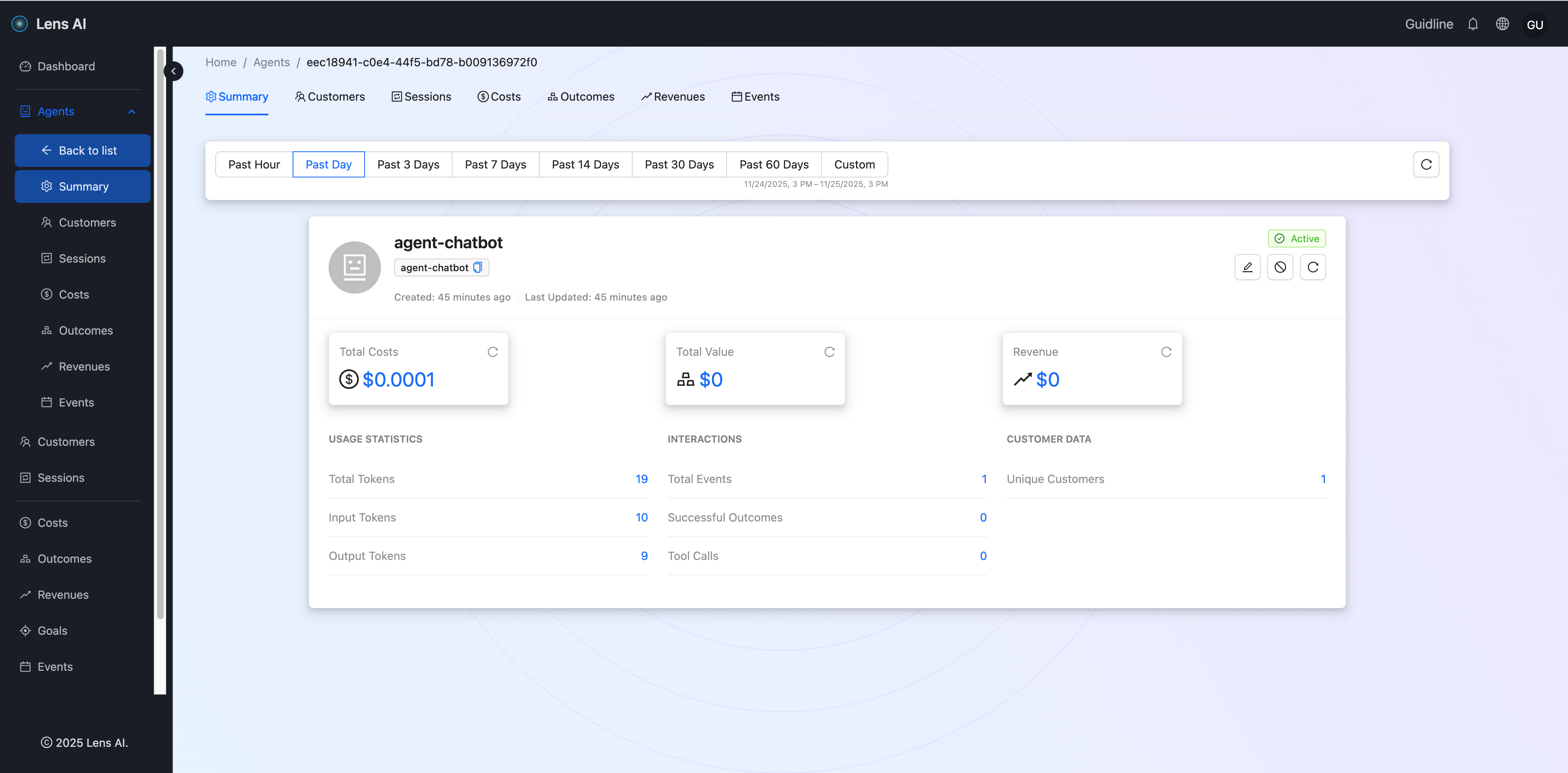
You should see detailed agent usage information.
Navigate to "Customers"
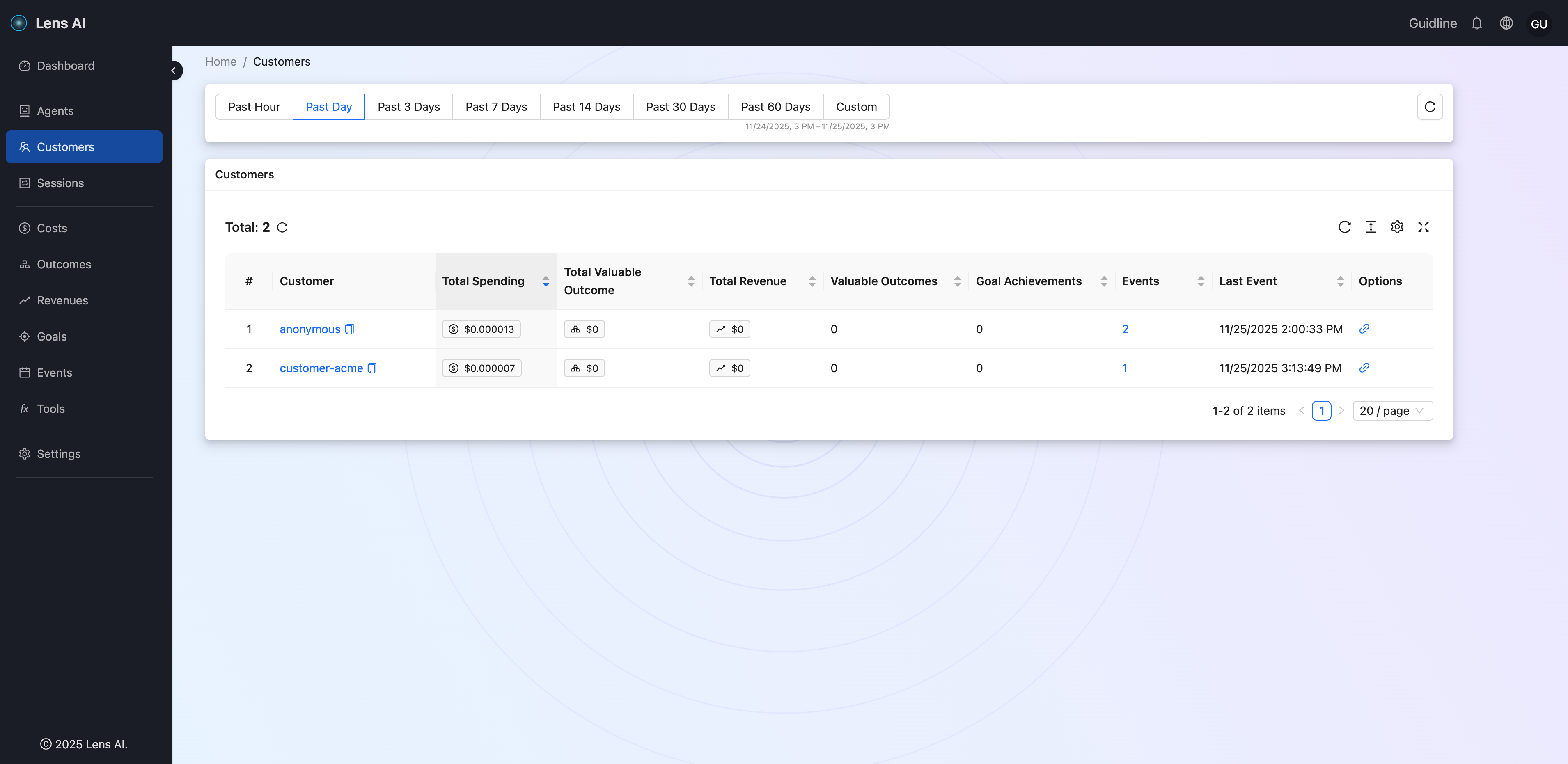
You should see detailed agent usage information for each customer. Click the 'View customer details' button in the Options column:
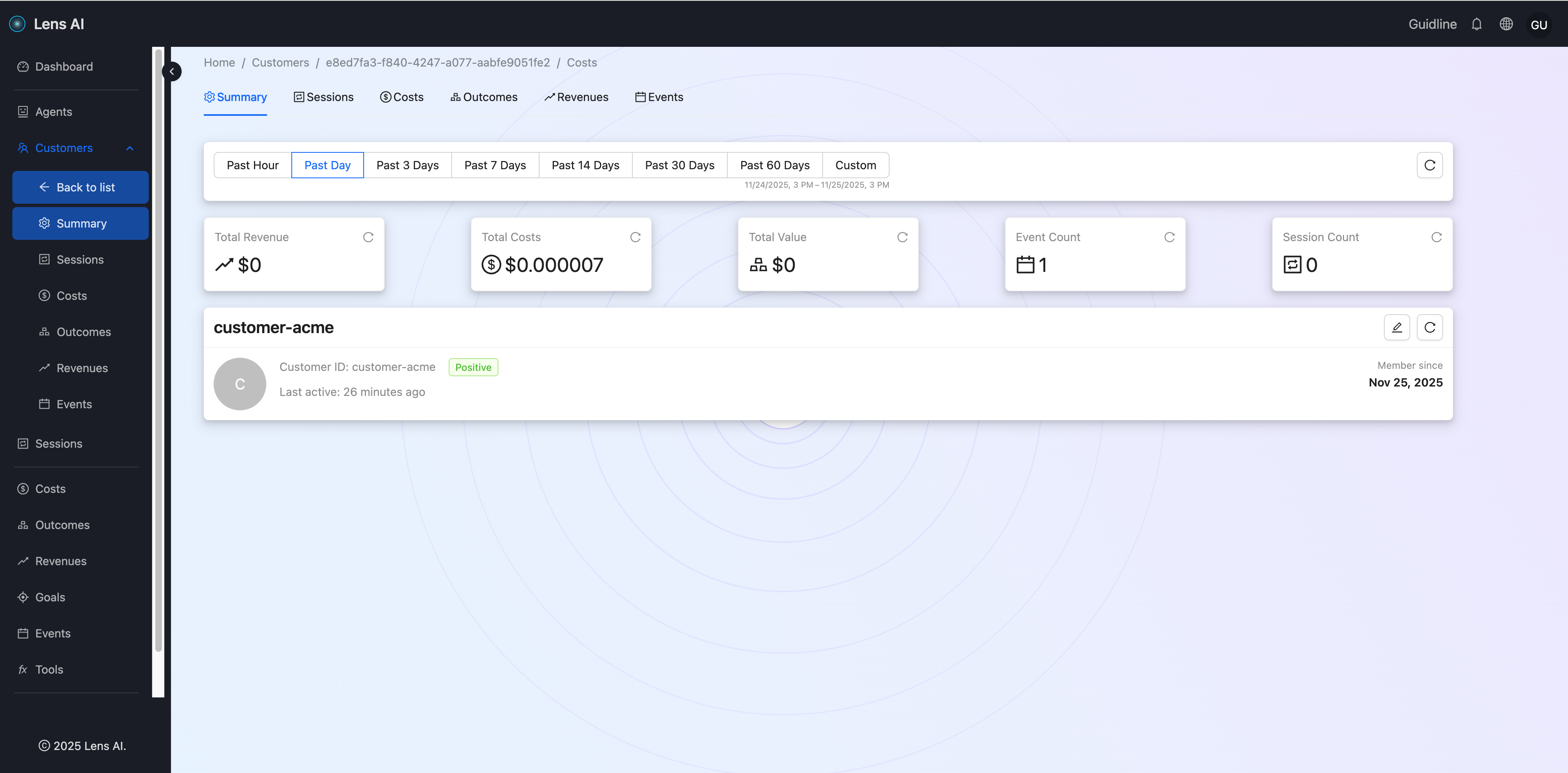
You should see detailed information about the Customer
Navigate to "Sessions"
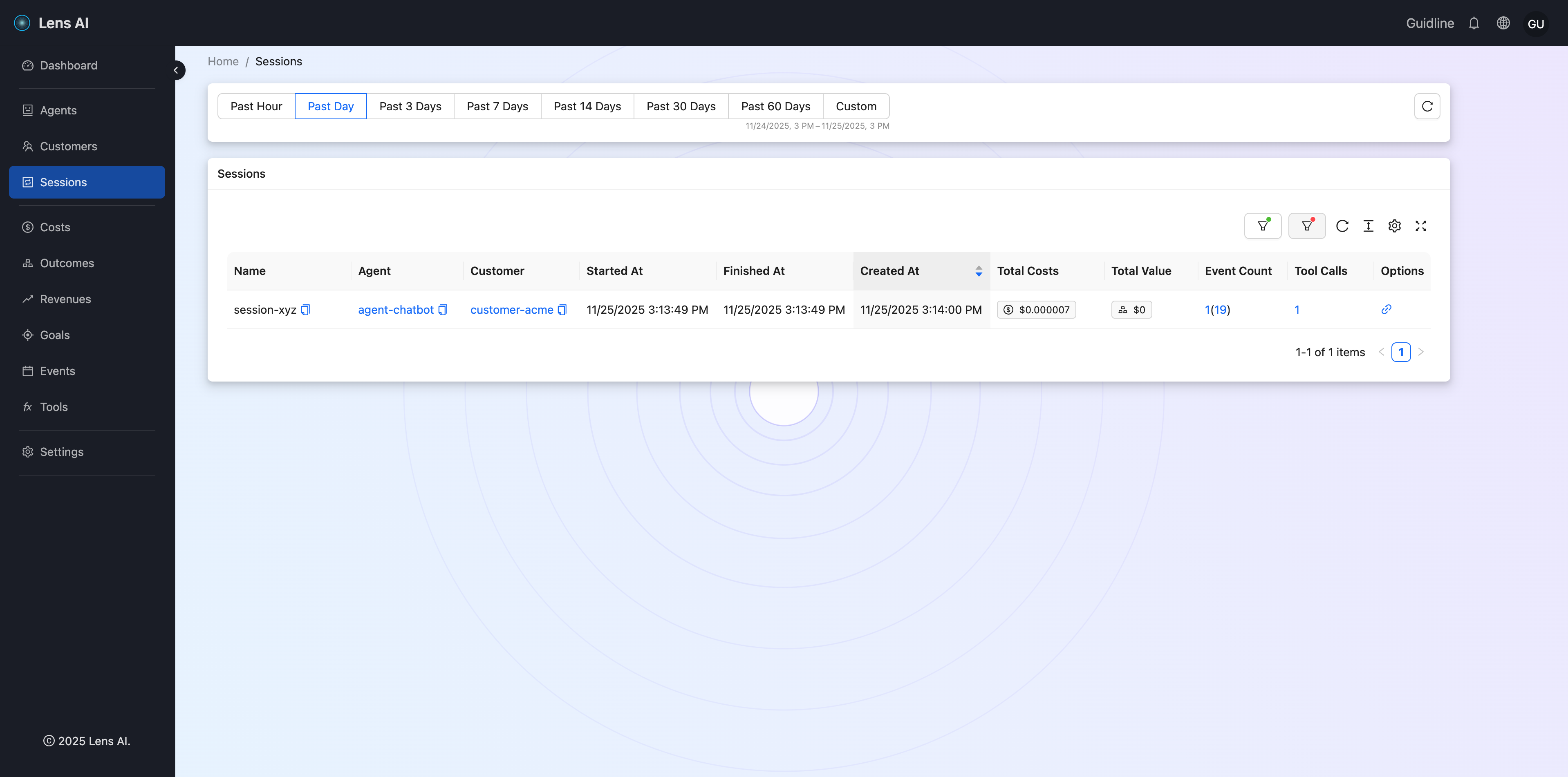
You should see detailed information about each session. Click the 'View session details' button in the Options column:
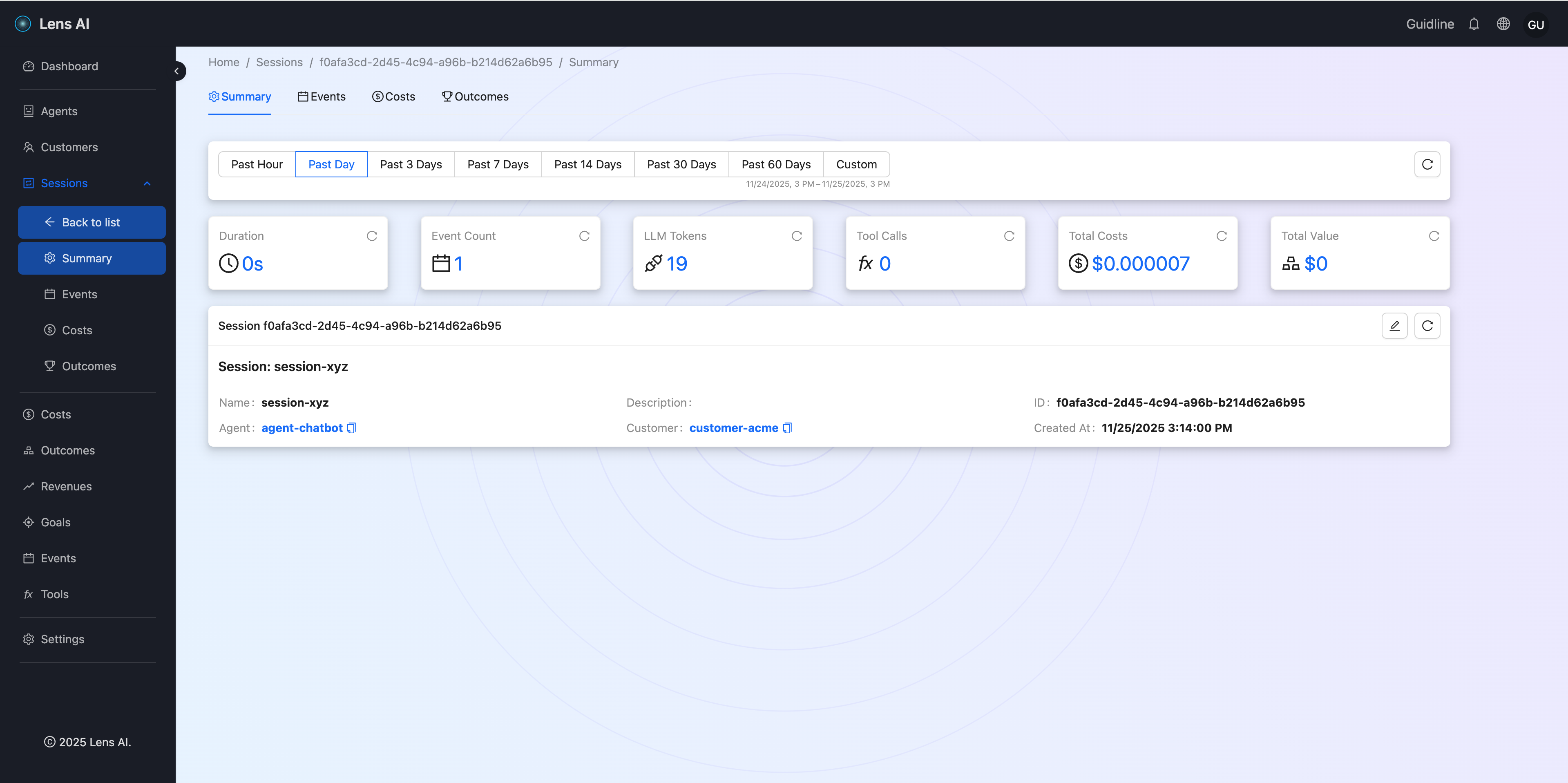
You should see detailed information about the Session
This enables you to:
- Track usage by agent (e.g., different chatbots or applications)
- Track usage by customer (for billing and cost allocation)
- Track usage by session (for debugging and conversation analysis)
Alternative way of passing the metadata
For more flexible tracking, you can use metadata-based approach instead of composite keys. See the Proxy Authentication for details on:
- How metadata mode works
- When to use metadata vs composite keys
- Advanced metadata configuration
Tracking Tool Calls
LensAI automatically tracks all tool/function calls across providers. Tools allow LLMs to call external functions and APIs.
Let's make a tool call, and we'll see this call in the dashboard:
import OpenAI from 'openai';

const client = new OpenAI({
    apiKey: `${process.env.OPENAI_KEY}$${process.env.LENSAI_KEY}$agent-chatbot$customer-acme$session-xyz`,
    baseURL: 'https://proxy.getlens.ai/v1/llm/openai',
});

// Define the tool
const weatherTool = {
    type: 'function',
    function: {
        name: 'get_weather',
        description: 'Get the current weather in a given location',
        parameters: {
            type: 'object',
            properties: {
                location: {
                    type: 'string',
                    description: 'The city and state, e.g. Boston, MA',
                },
                unit: {
                    type: 'string',
                    enum: ['celsius', 'fahrenheit'],
                },
            },
            required: ['location'],
        },
    },
};

// Step 1: Initial request with tool
const response1 = await client.chat.completions.create({
    model: 'gpt-4o-mini',
    messages: [{ role: 'user', content: 'What is the weather in Boston?' }],
    tools: [weatherTool],
});

// Check if model wants to call the function
const toolCall = response1.choices[0].message.tool_calls?.[0];

if (toolCall && toolCall.type === 'function') {
    console.log('Function to call:', toolCall.function.name);
    console.log('Arguments:', JSON.parse(toolCall.function.arguments));

    // Step 2: Execute the function (your implementation)
    const weatherData = {
        temperature: 72,
        conditions: 'Sunny',
        location: 'Boston, MA',
    };

    // Step 3: Send tool result back
    const response2 = await client.chat.completions.create({
        model: 'gpt-4o-mini',
        messages: [
            {
                role: 'user', content: 'What is the weather in Boston?'
            },
            response1.choices[0].message,
            {
                role: 'tool',
                tool_call_id: toolCall.id,
                content: JSON.stringify(weatherData),
            },
        ],
        tools: [weatherTool],
    });

    console.log('Final response:', response2.choices[0].message.content);
}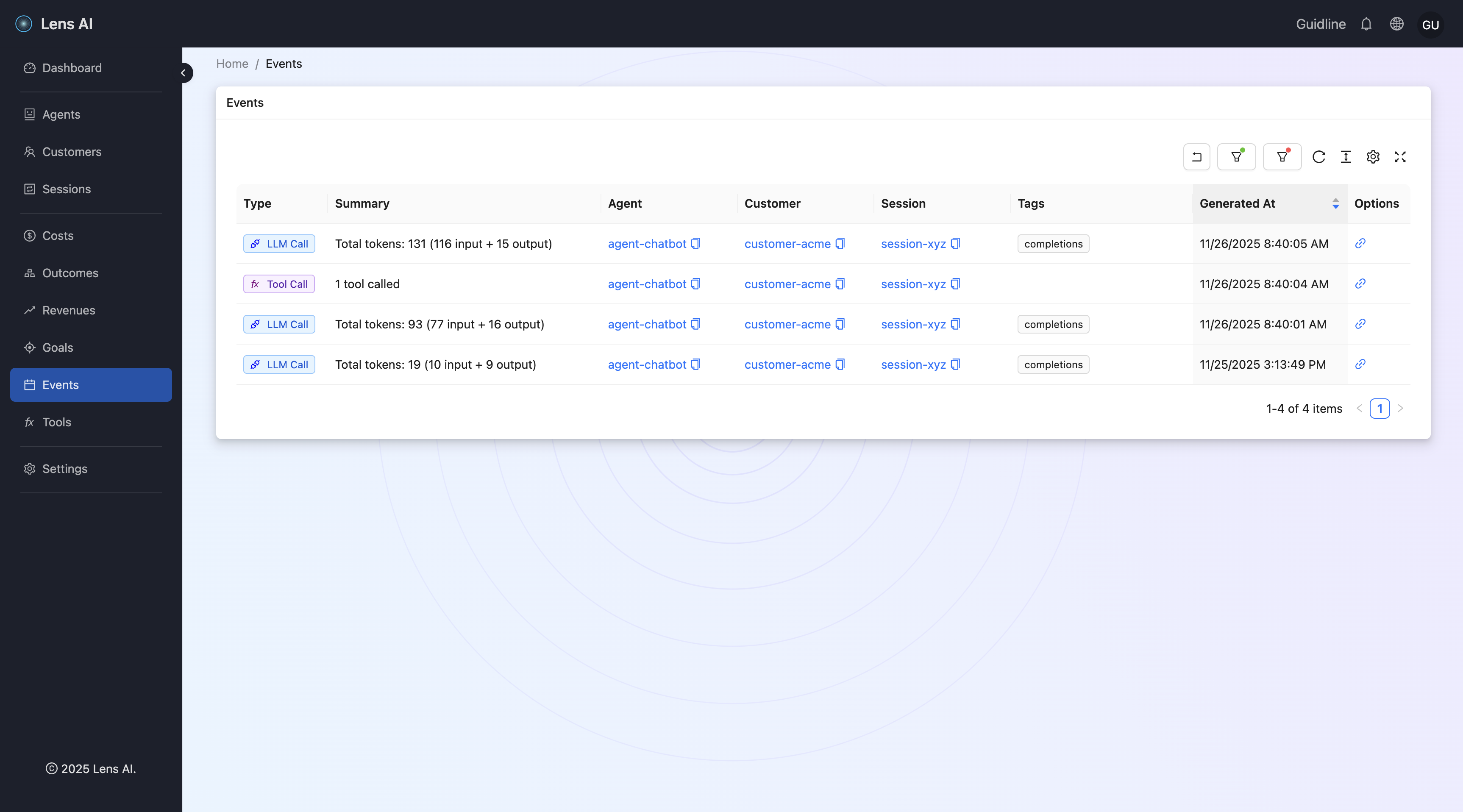
Click the 'View event details' button in the Options column:
You can find detailed information about the tool call.
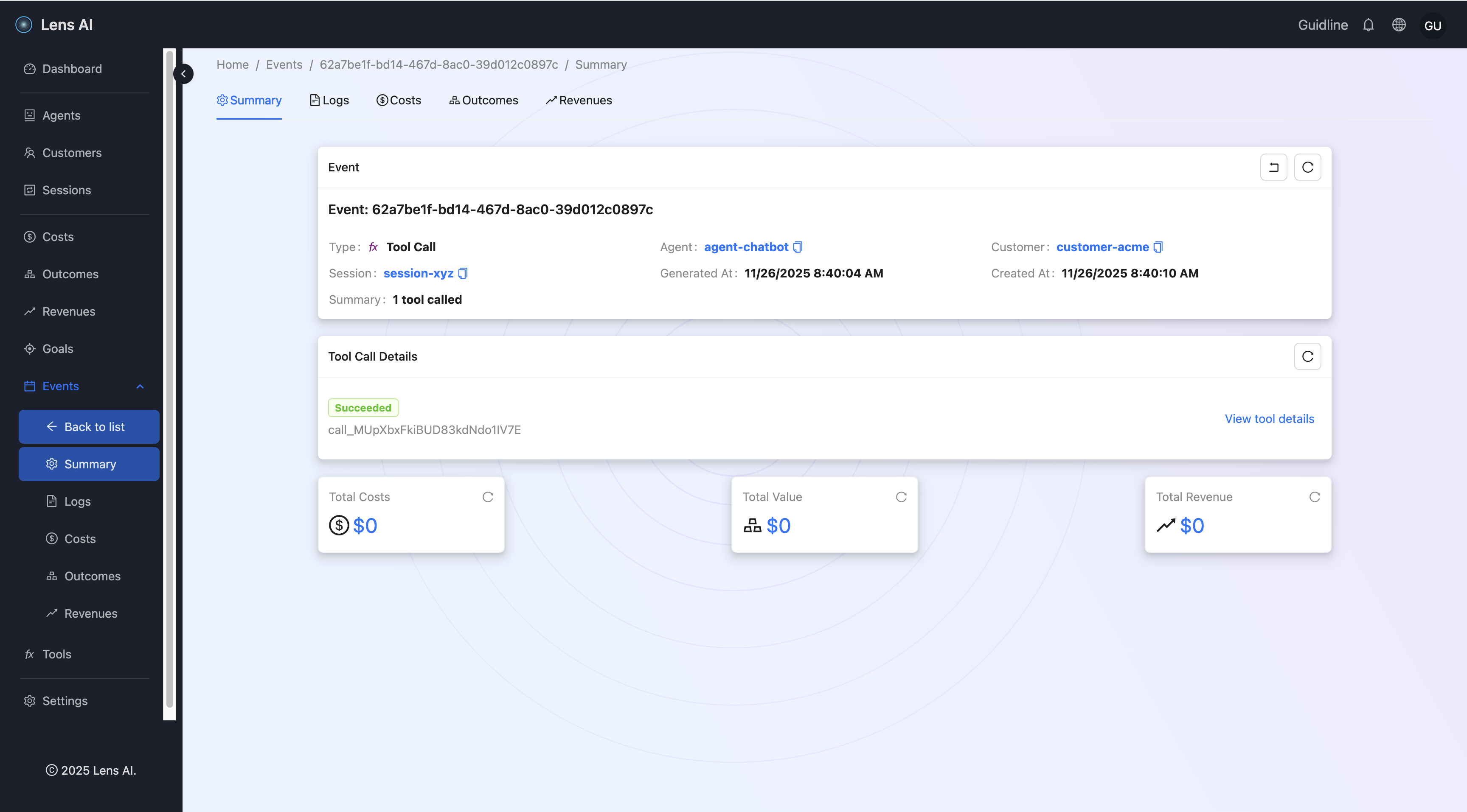
However, the cost is still $0. Let's set up the call price for this tool.
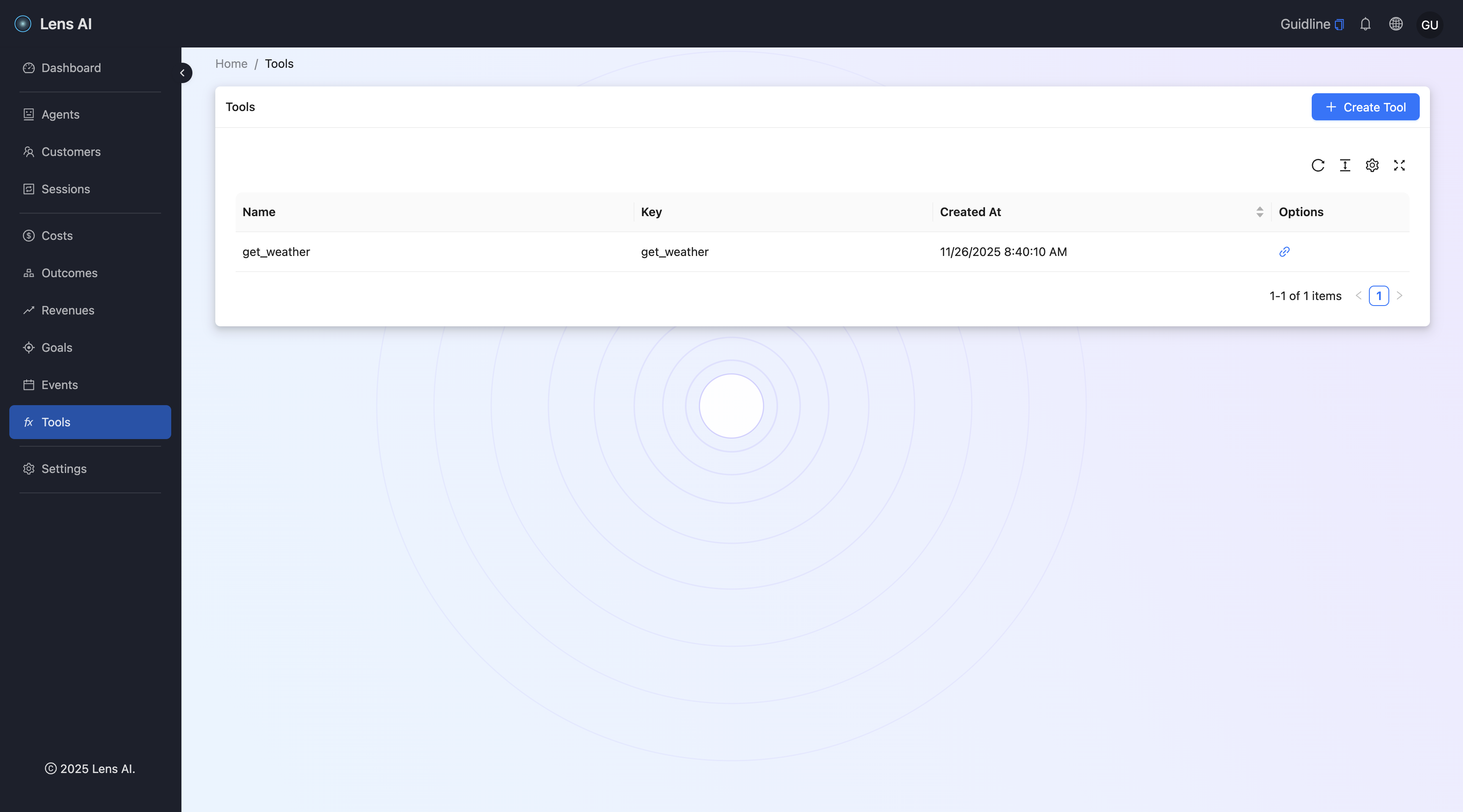
Click the 'View tool details' button in the Options column:
You can find detailed information about the tool.
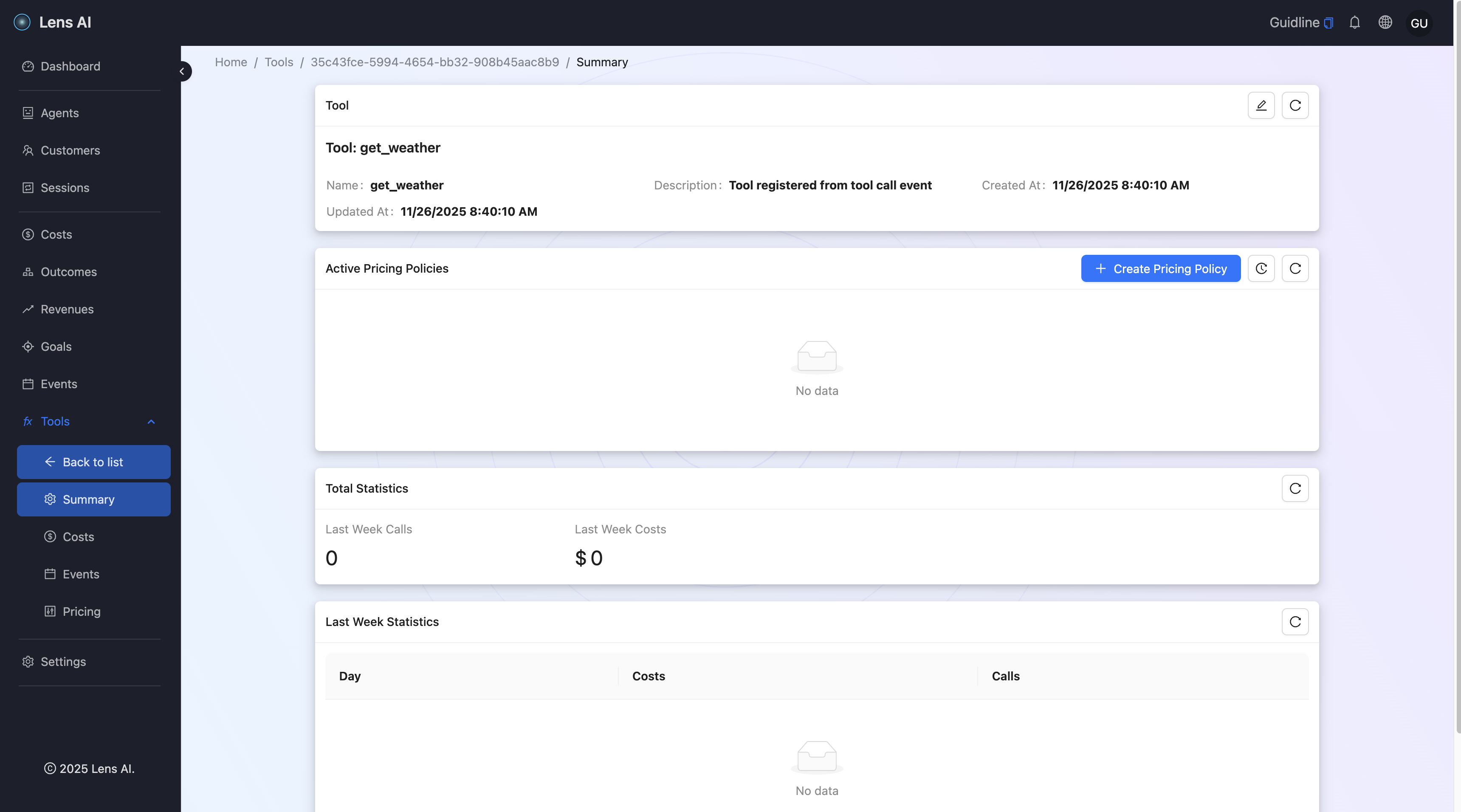
Let's create a pricing policy - click the Create Pricing Policy button and set 0.1$ per call:
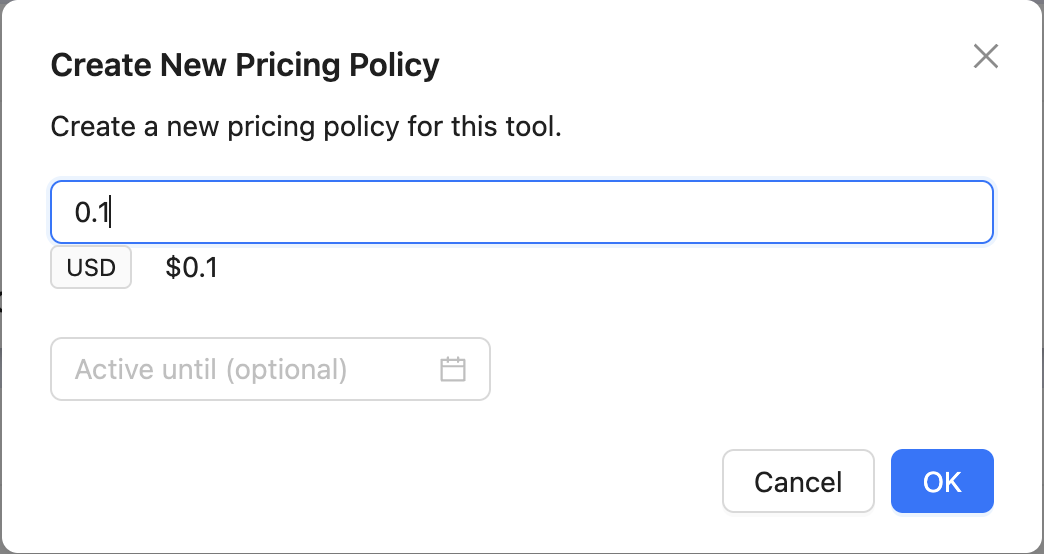
Repeat the first step - send one more tool call.
Navigate to Events and click View Event Details for the new tool call.
You can now see the cost of the tool call:
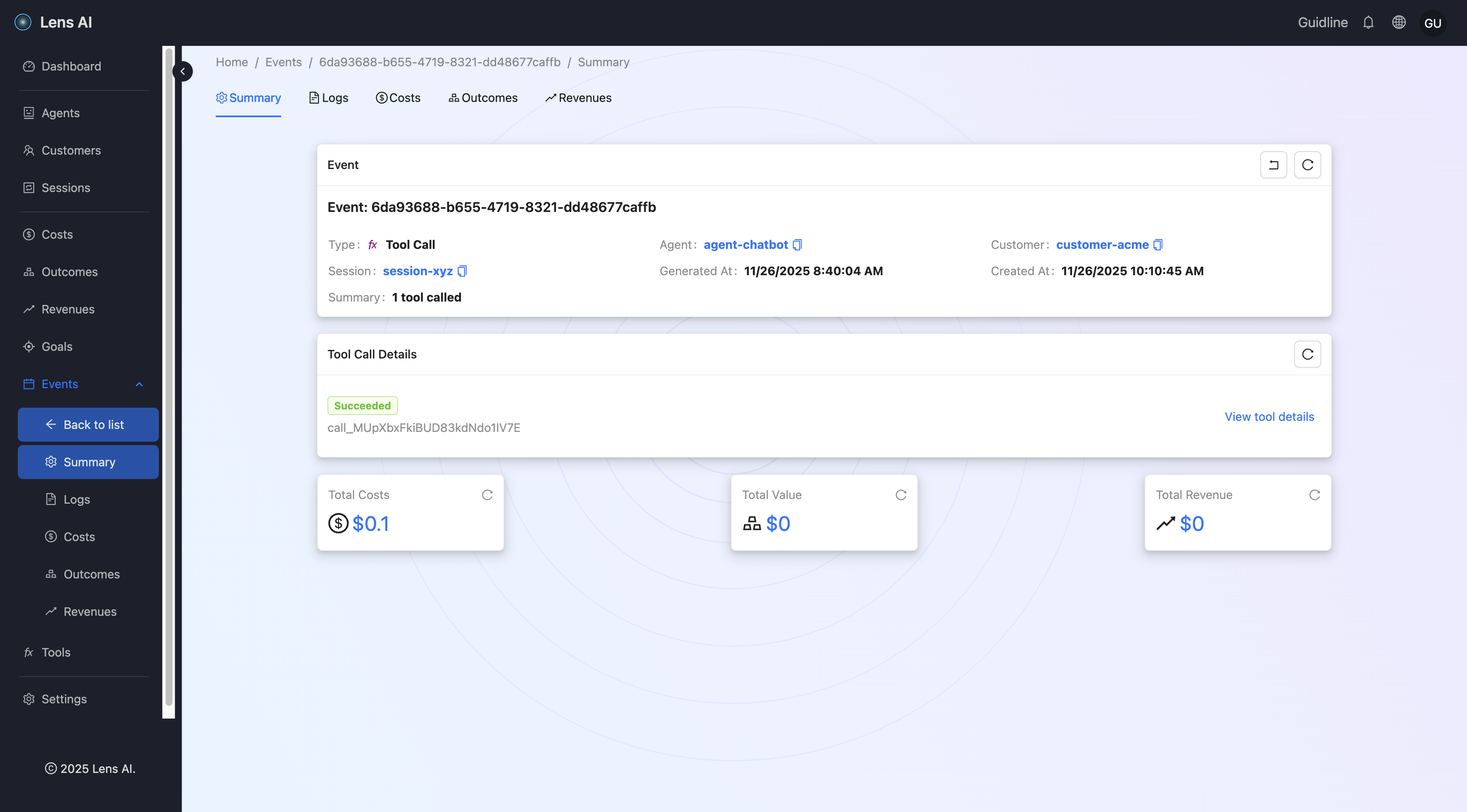
Summary
- We made our first tracked tool call.
- We viewed detailed information about this tool call.
- We added a pricing policy for the tool.
- We viewed the calculated cost of the tool call based on the pricing policy.
Goals
LensAI allows you to create and track goals that are achieved by the AI agent / LLM App. This is similar to goals you track in your product analytics, but in LensAI we use goals to link them to Outcomes to measure human value denominated in dollars that your Agent / App gives to your customers.
To see defined goals navigate to Goals.
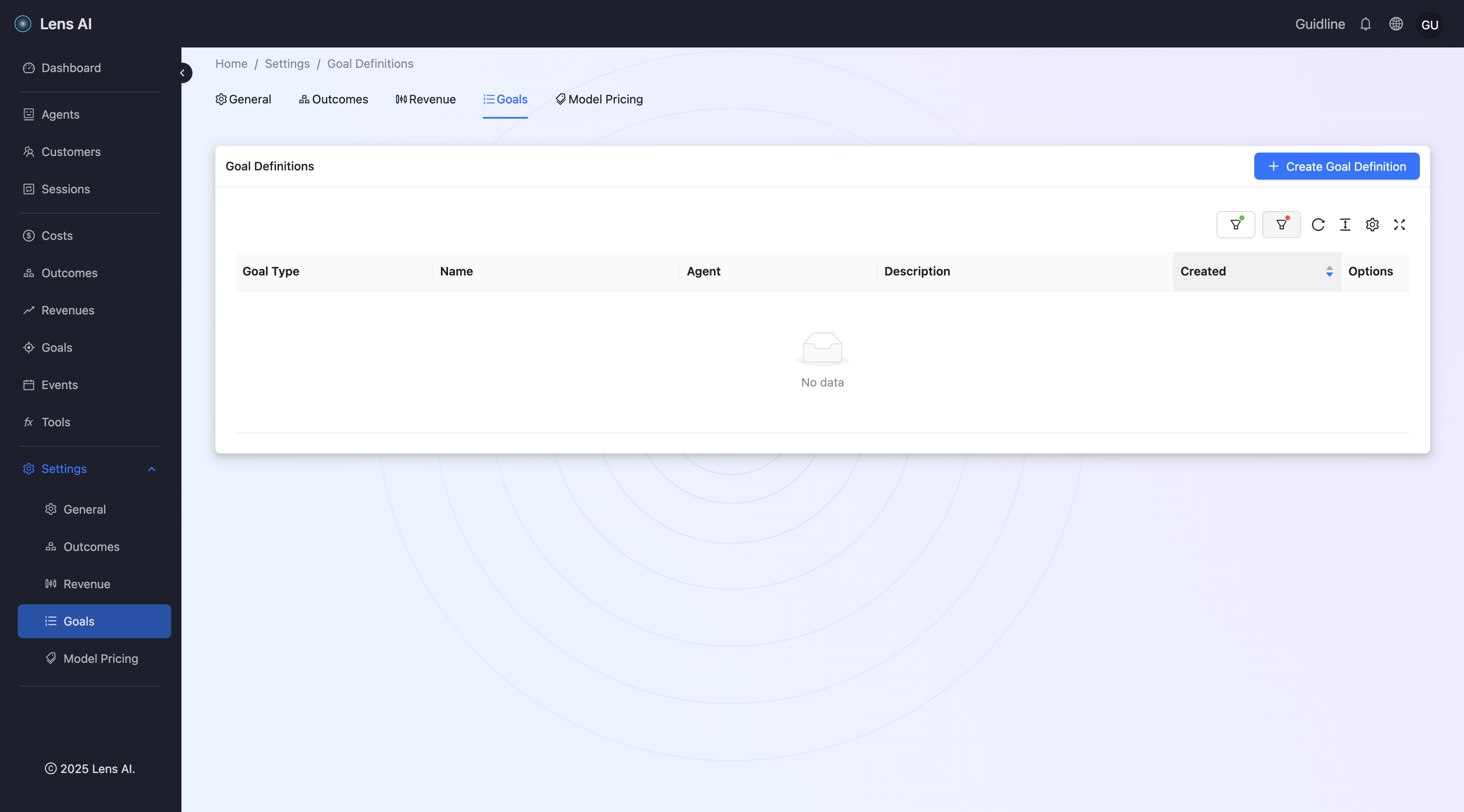
Let's create a new goal definition for our agent, click on the Create Goal:
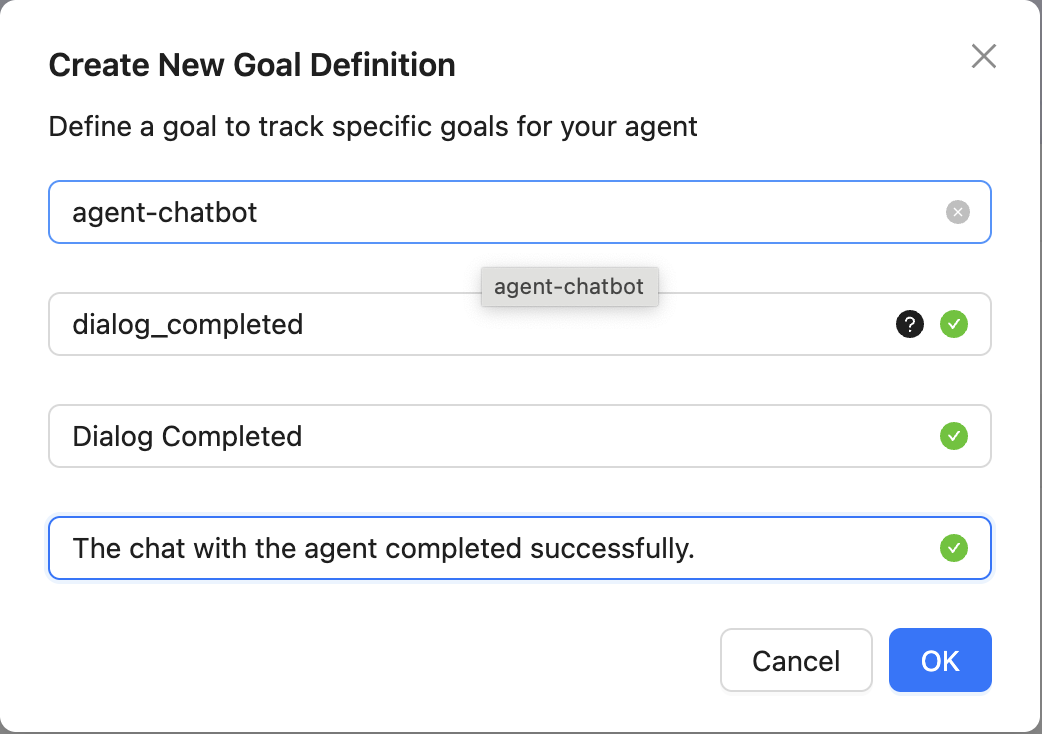
The newly created goal definition should now appear on the list page.
Outcomes
LensAI makes it possible to track an agent’s performance using the Valueable Outcomeы. This metric represents how much value the agent has created through its work.
For example, an AI customer support agent can generate roughly the same amount of value as a human support engineer when they both close a similar number of support tickets. We can define ticket_closed as a valuable outcome worth $10 each and see how useful our AI agent is in dollar terms.
LensAI allows you to track valuable outcomes generated by an agent in two ways:
- Sending a goal event
- Sending a tool call request event
Create From Goals
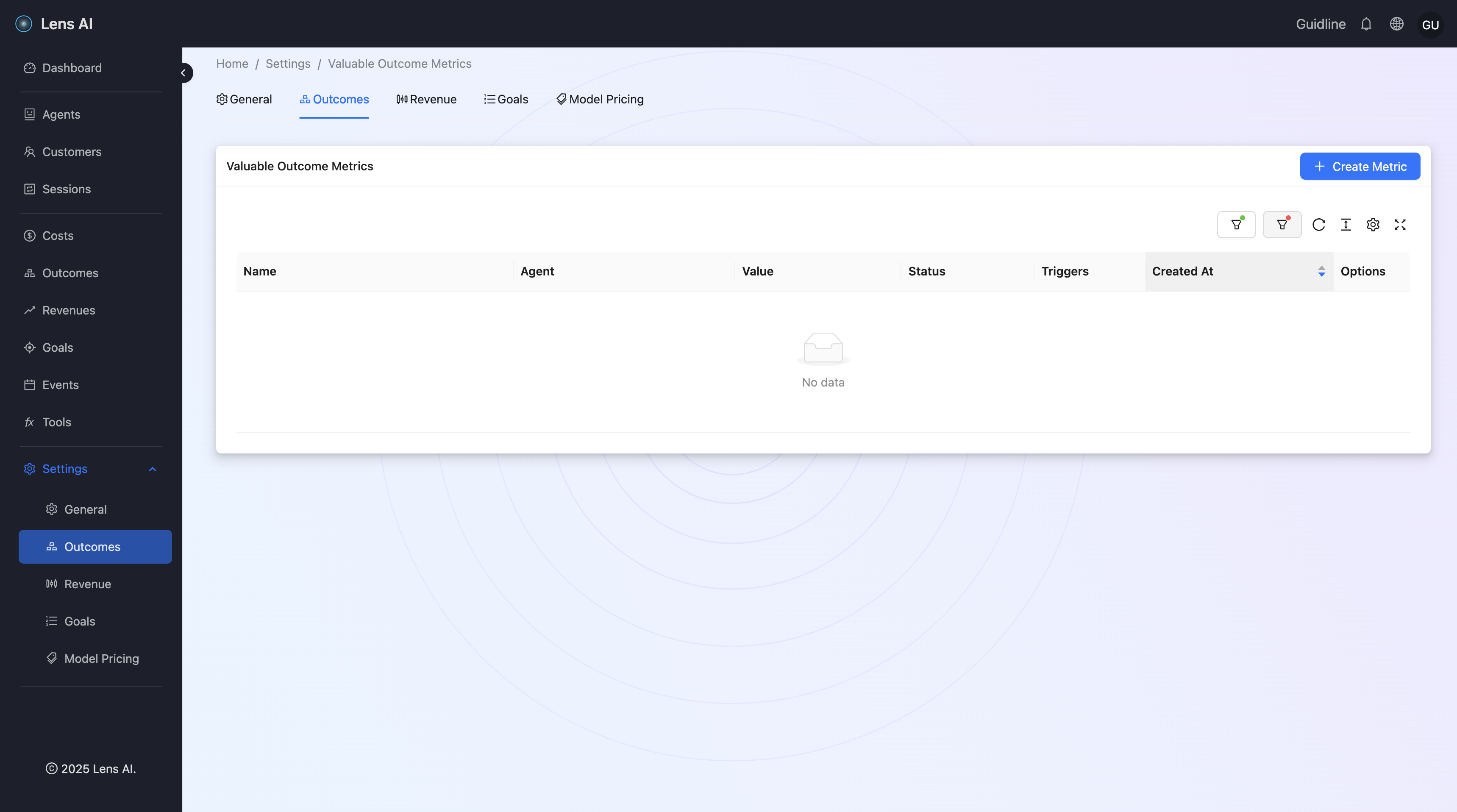
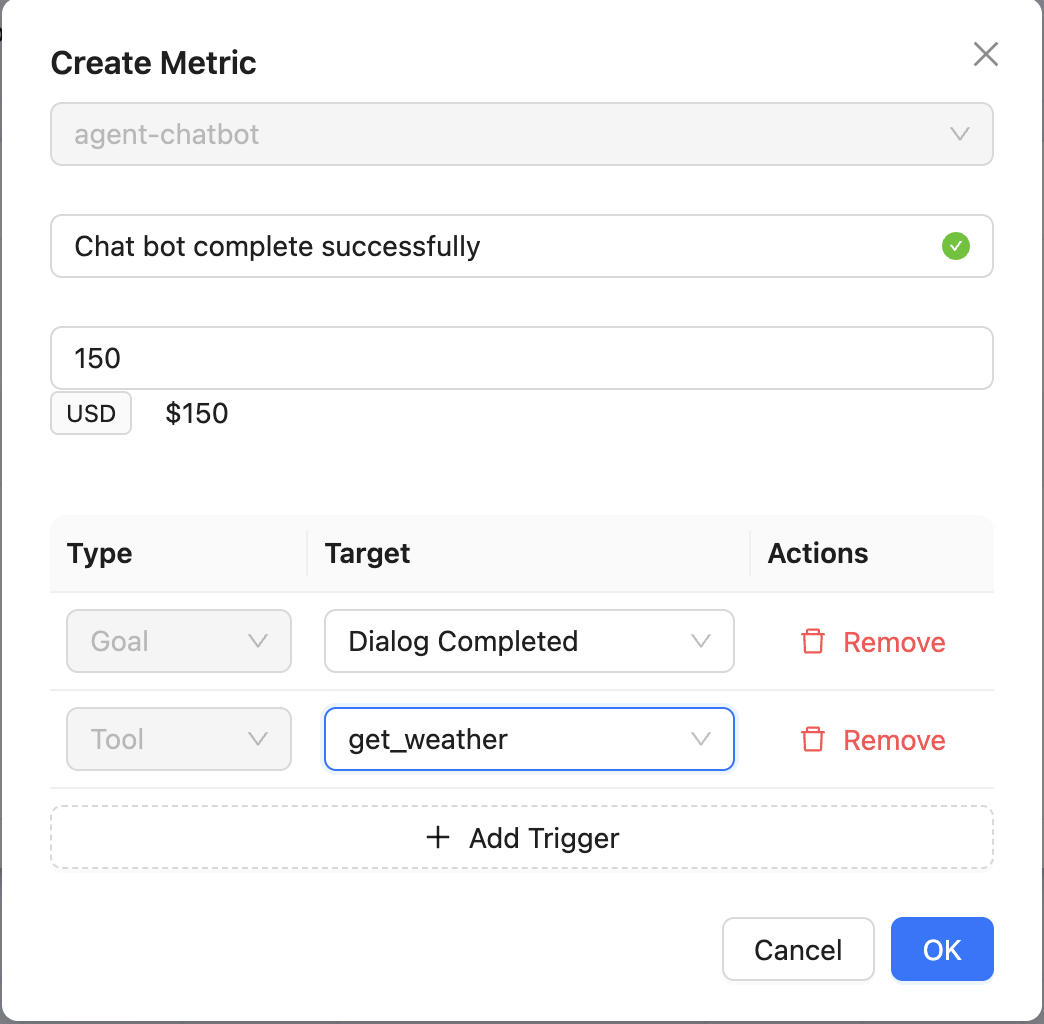
Click the Create Metric button, then select your agent, metric name, amount, tool call and goal triggers from the previous guides:
The newly created Valuable Outcome Metric should now appear on the list page.
Send a goal achievement event with the data from the previous steps (The sessionKey should be different from the previous steps, because only one goal per session with a specific type will trigger outcome creation.)
curl -X POST 'https://api.getlens.ai/v1/goals' \
-H "Authorization: Bearer $LENSAI_KEY" \
-H "Content-Type: application/json" \
-d '{
    "goalKey": "dialog_completed",
    "agentKey": "agent-chatbot",
    "sessionKey": "session-xyz2",
    "customerKey": "customer-acme",
    "metadata": {}
}'
Navigate to Goals
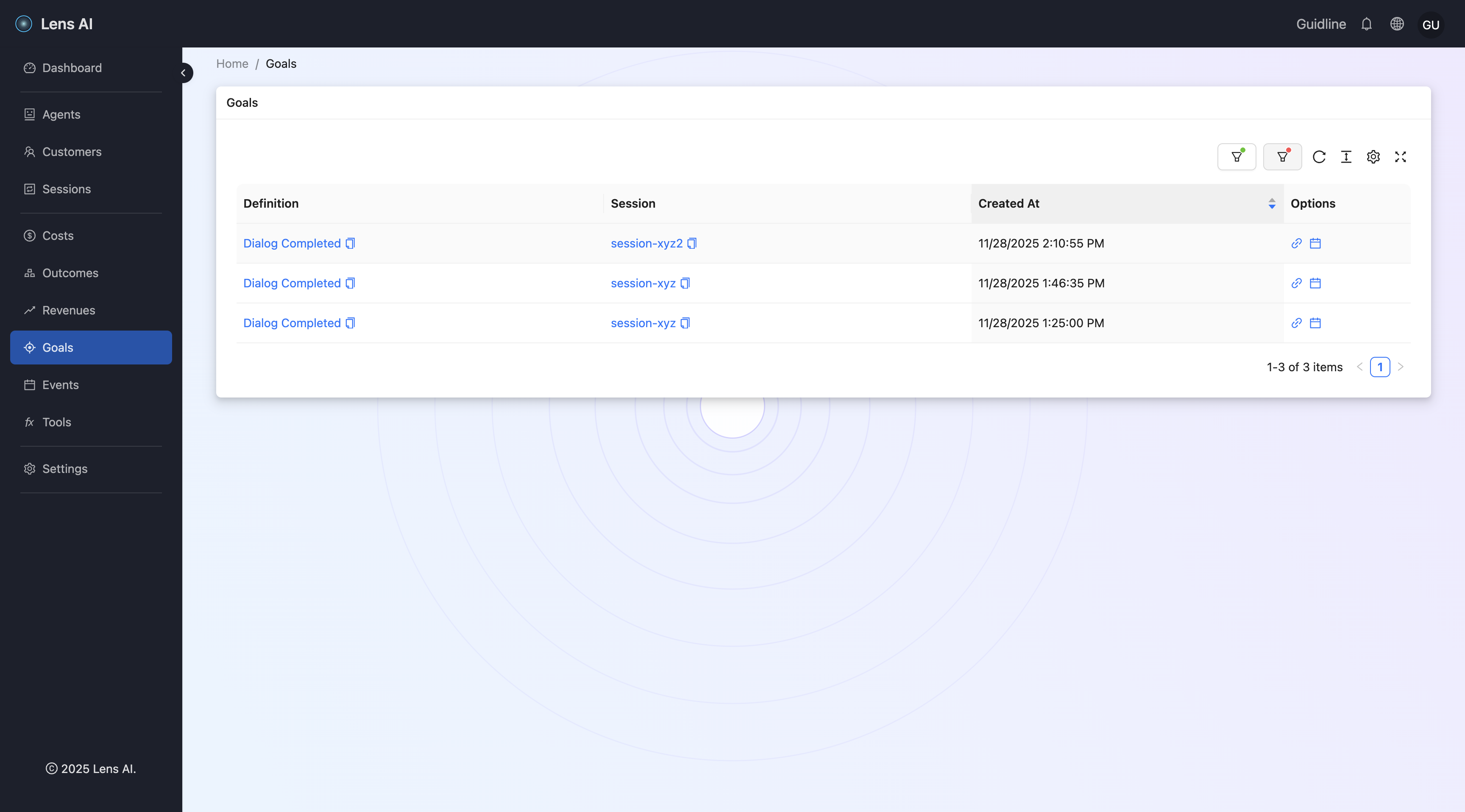
You should see the goal with the definition 'Dialog Completed' (created earlier) and Session 'session-xyz2' in the goals list. You can view detailed information about this goal achievement on the details page.
Navigate to Outcomes Visit
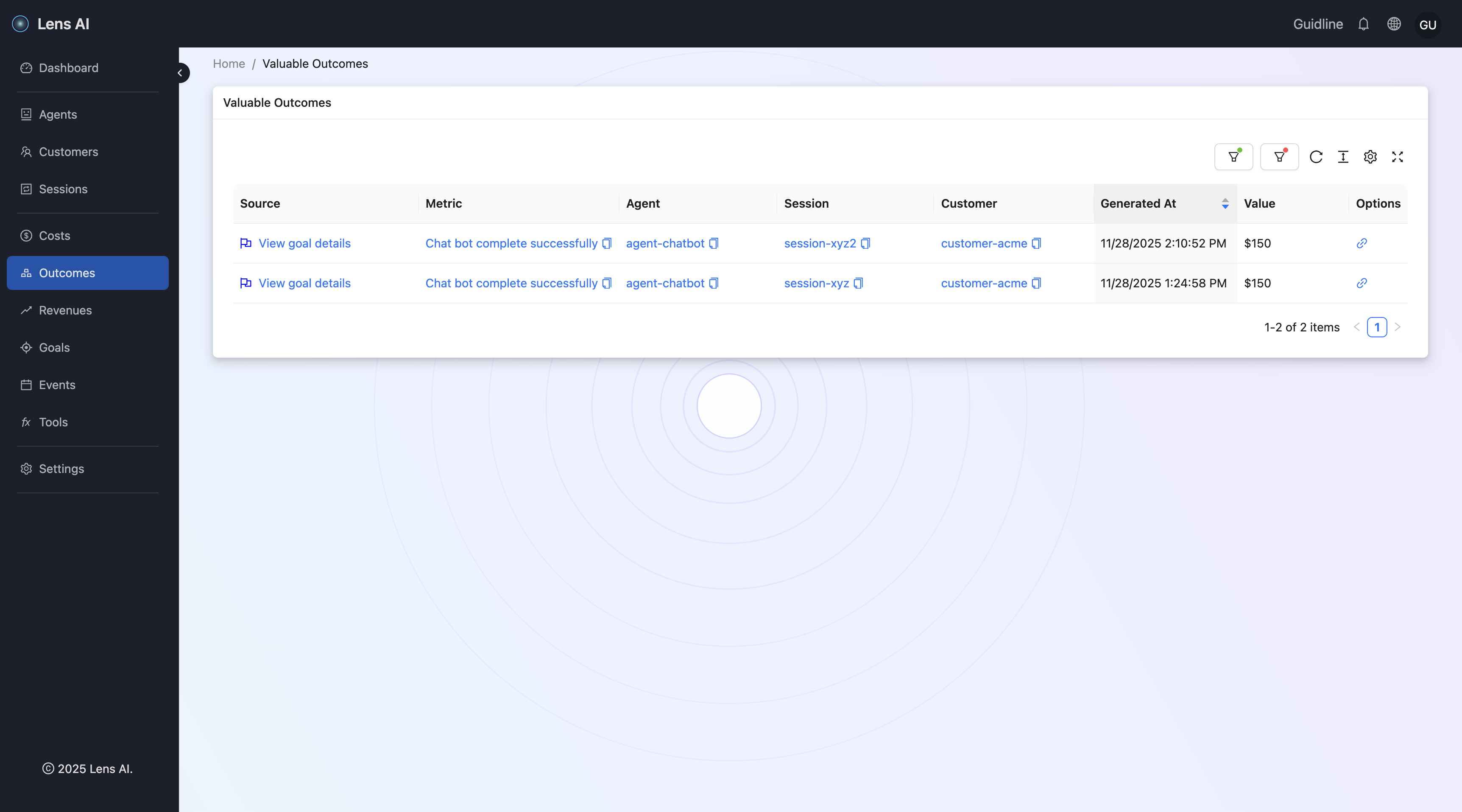
The newly created Outcome for the session 'session-xyz2 should now appear on the list page.
Create From Tools
Send one more tool call (with the new session key)
Navigate to Outcomes
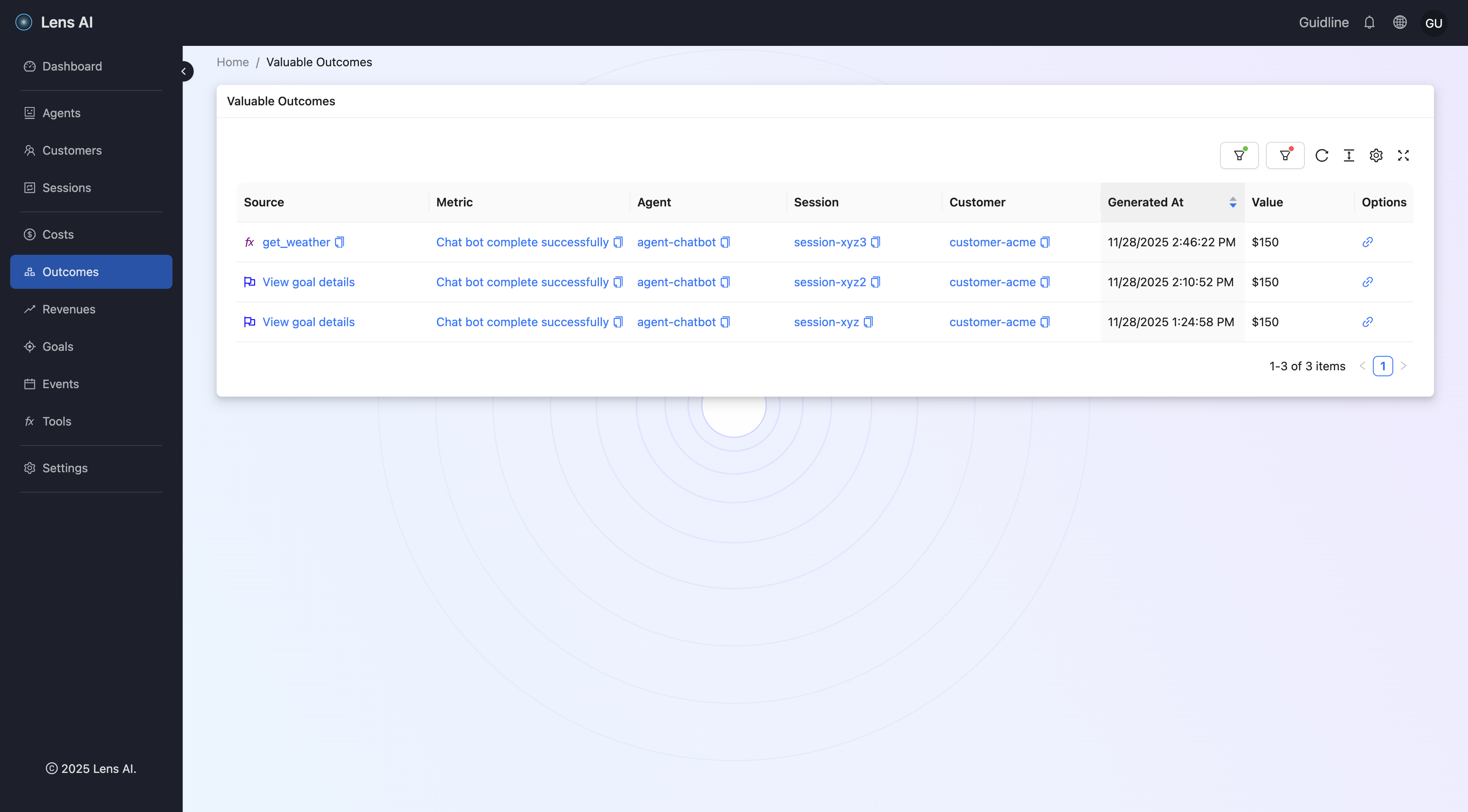
The newly created Outcome for the session 'session-xyz3 should now appear on the list page.
Navigate to Agents
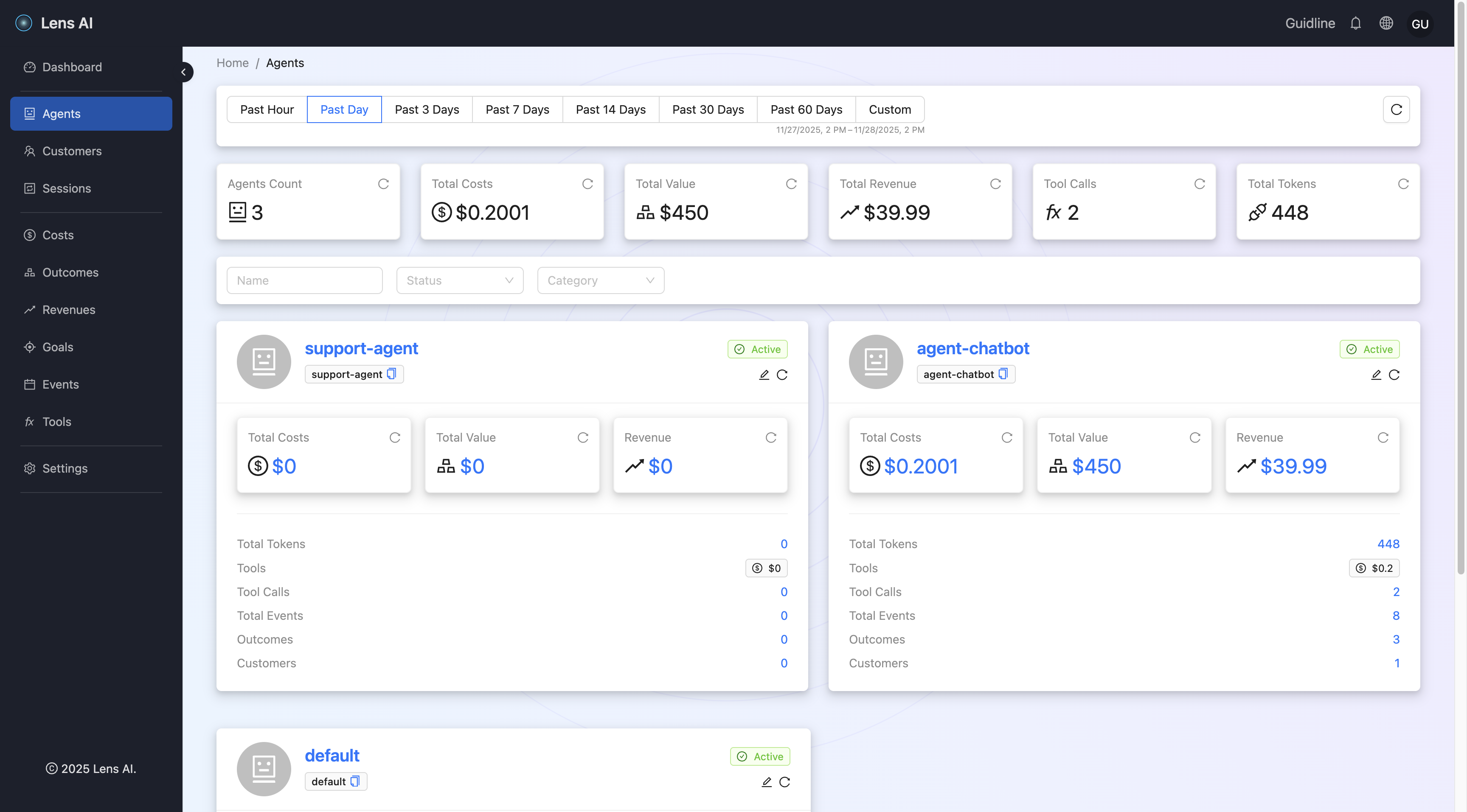
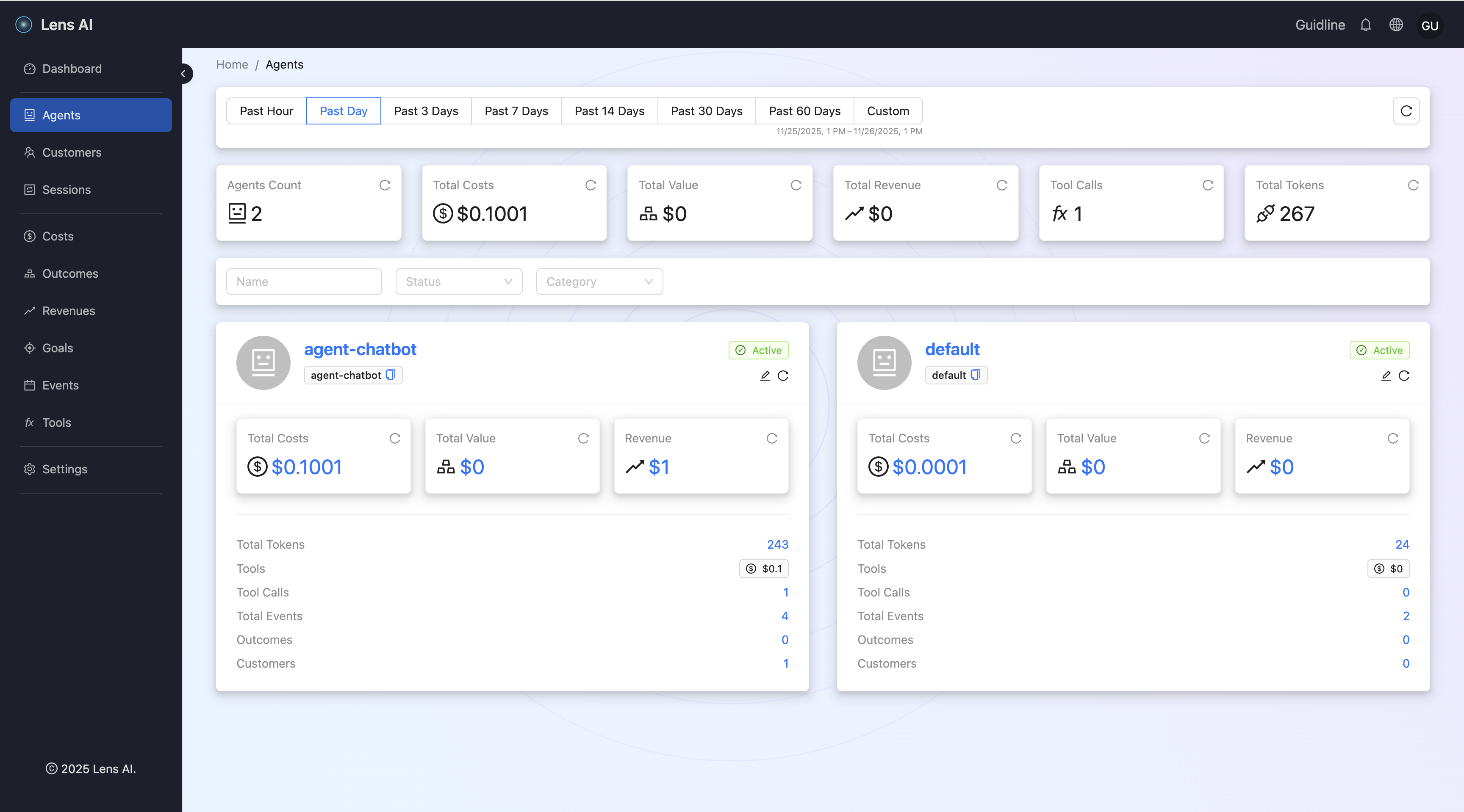
You can now see that your agent-chatbot has a total value of $450 - the sum of all three valuable outcomes.
Revenue
LensAI lets you track revenue generated by an agent in three ways:
- Manually adding revenue for agents on the Dashboard (e.g., when customers pay for a subscription via Stripe).
- Sending a revenue receipt event (e.g., when a subscription payment is processed).
- Sending a goal achievement event (e.g., when a customer pays you after the agent achieves a goal).
Manualy Adding Revenue
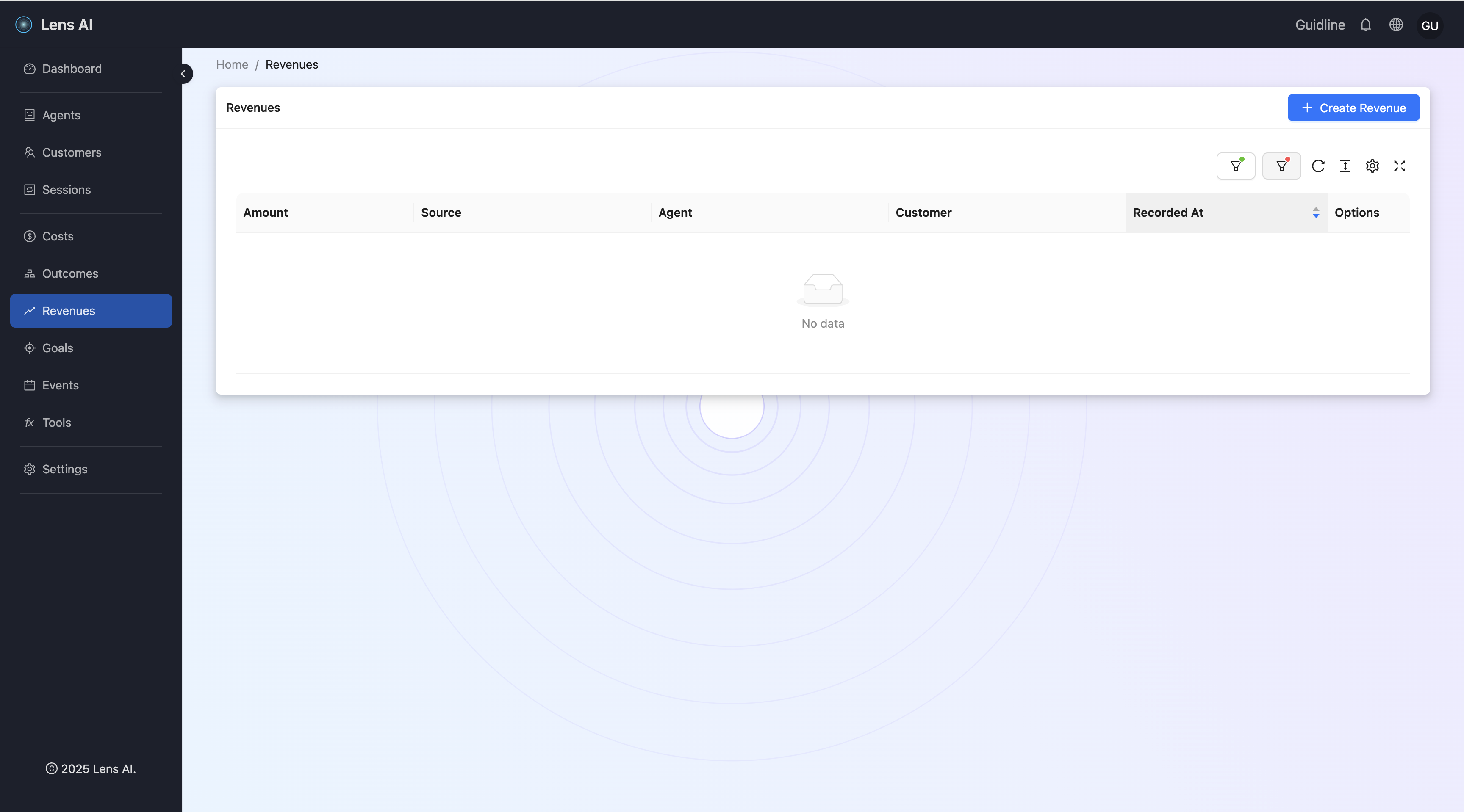
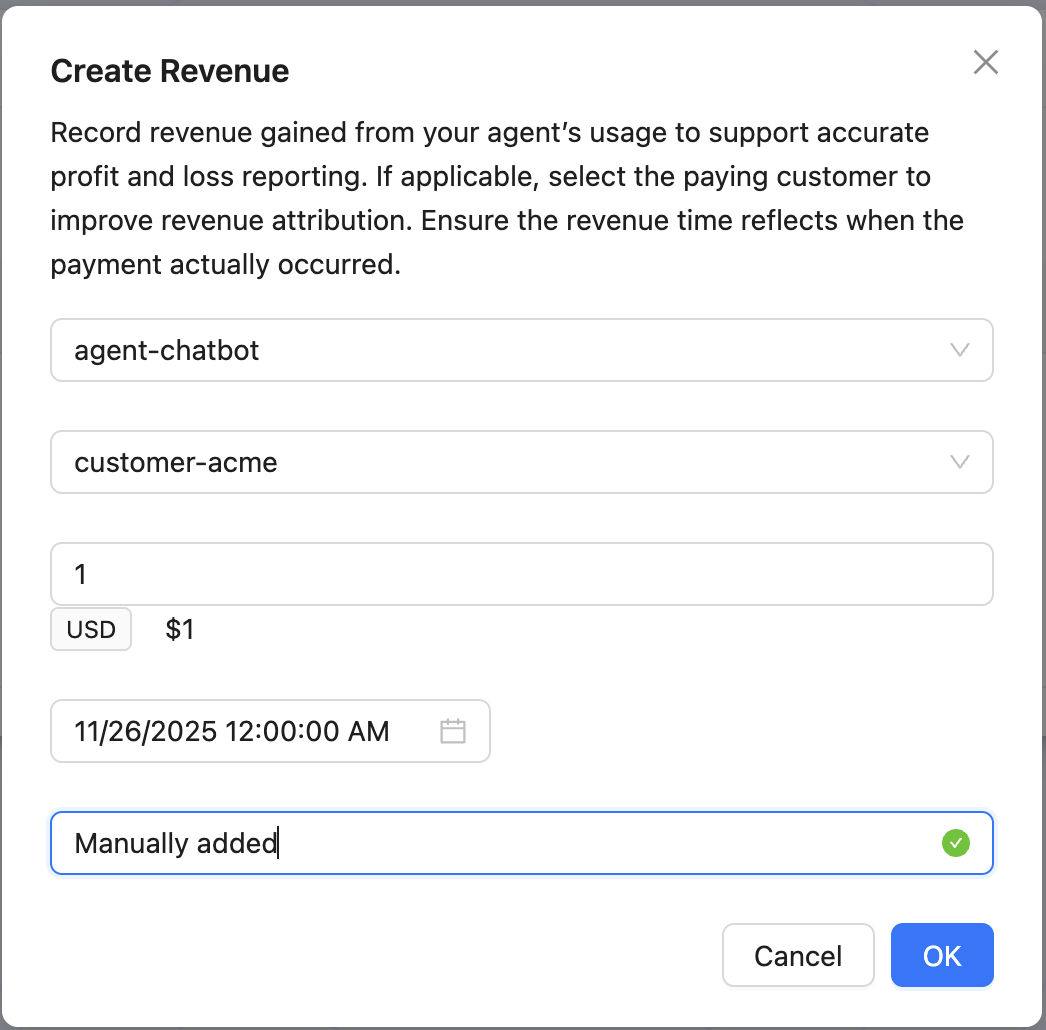
Click the Create Revenue button
Select your agent, customer, amount from the previous steps:
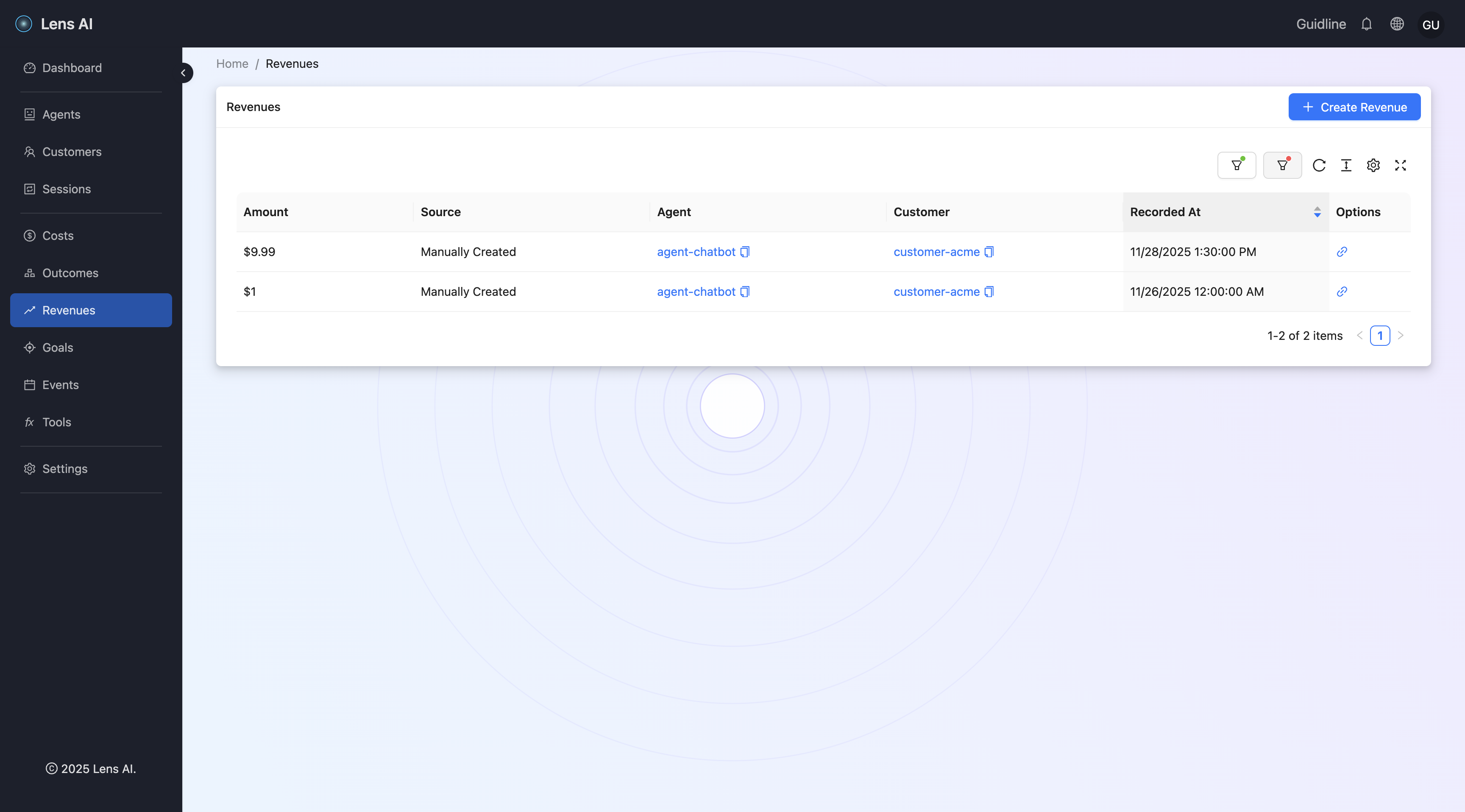
The newly created revenue should now appear on the list page.
Adding Revenue Via API
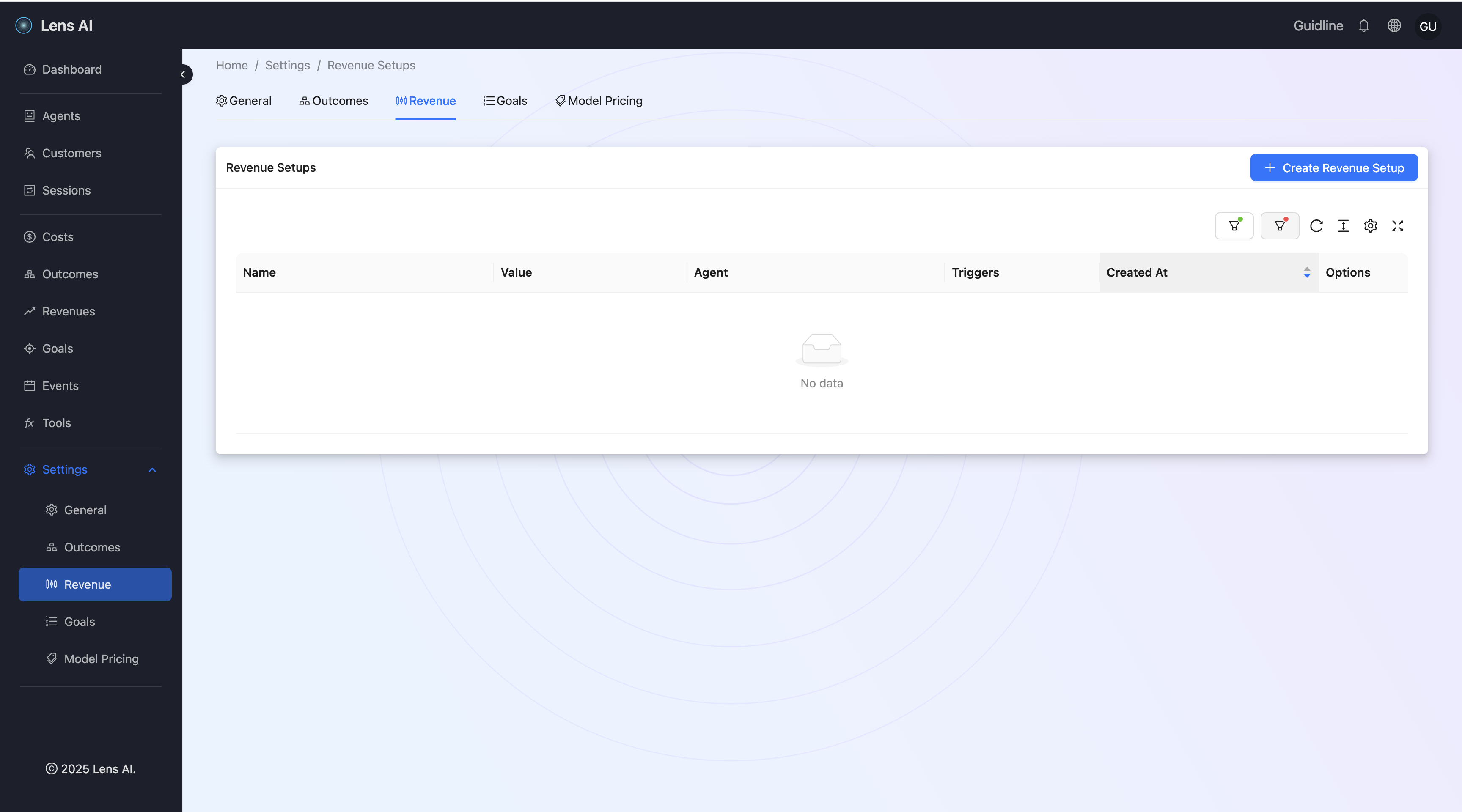
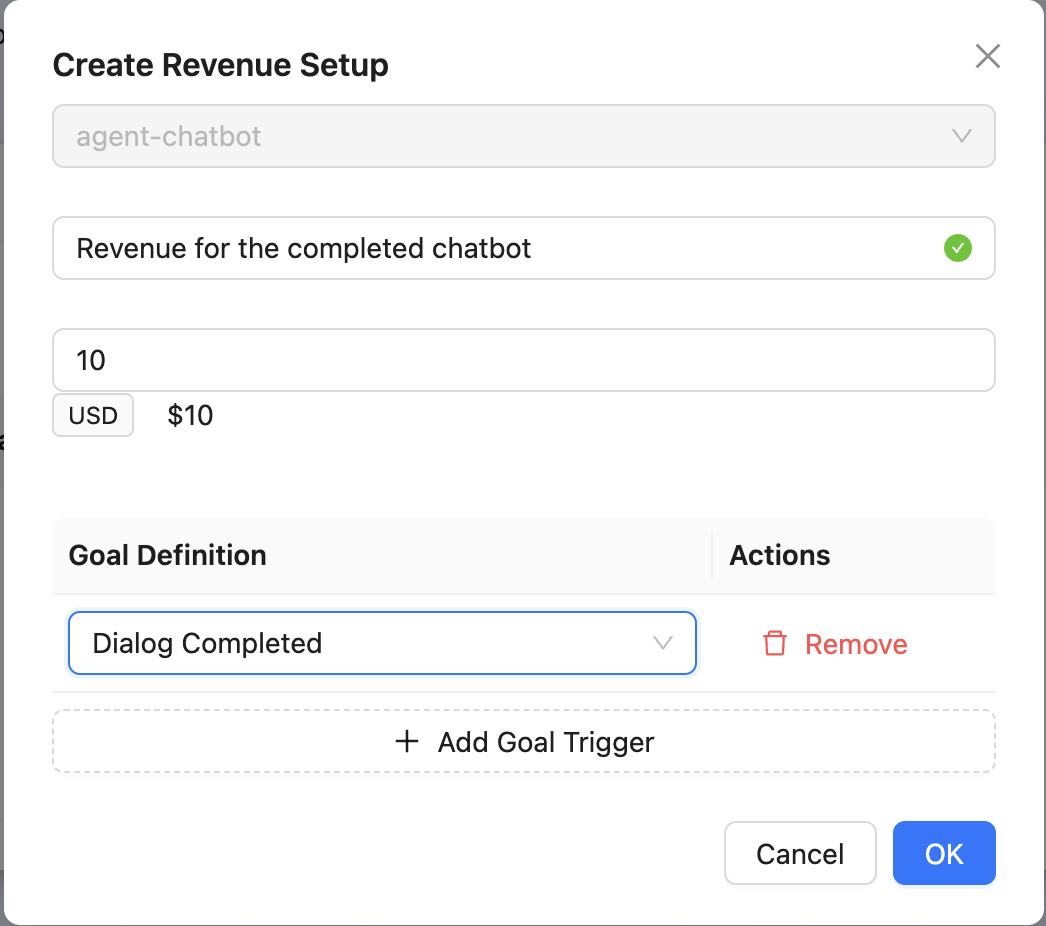
Click the Create Revenue Setup button, then select your agent, revenue name, amount, and the goal definition from the previous guides.
The newly created revenue setup should now appear on the list page.
Send a revenue receipt event
curl -X POST 'https://api.getlens.ai/v1/revenues' \
-H "Authorization: Bearer $LENSAI_KEY" \
-H "Content-Type: application/json" \
-d '{
    "amount": "9.99",
    "agentKey": "agent-chatbot",
    "customerKey": "customer-acme",
    "description": "Payment received for service",
    "recordedAt": "2025-11-28T10:30:00.000Z"
}'
Now we can create a revenue reacord by sending a goal event:
Send a goal achievement event with the data from the previous steps
curl -X POST 'https://api.getlens.ai/v1/goals' \
-H "Authorization: Bearer $LENSAI_KEY" \
-H "Content-Type: application/json" \
-d '{
    "goalKey": "dialog_completed",
    "agentKey": "agent-chatbot",
    "sessionKey": "session-xyz",
    "customerKey": "customer-acme",
    "metadata": {}
}'
Navigate to Goals
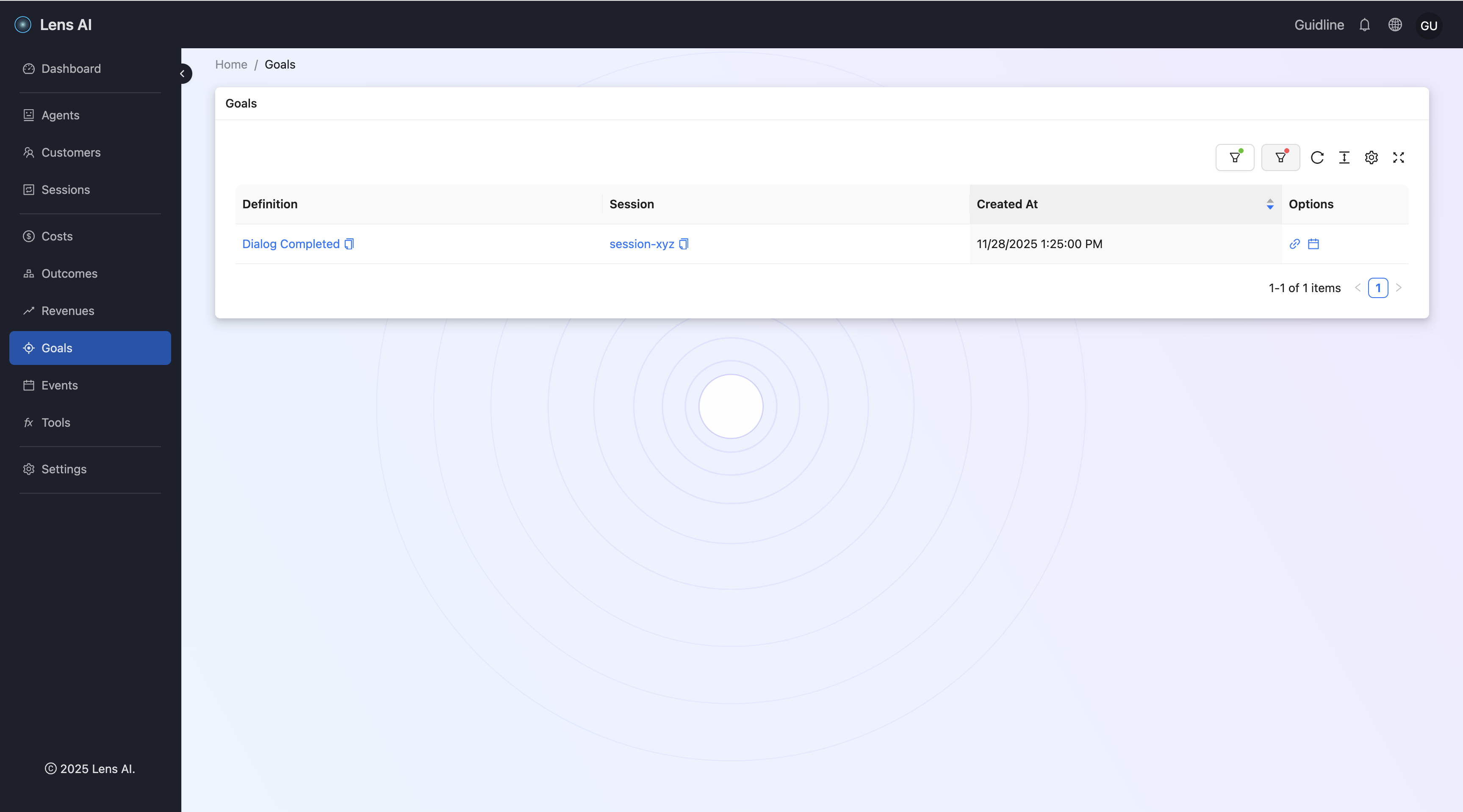
You should see the goal with the definition 'Dialog Completed' (created earlier) in the goals list. You can view detailed information about this goal achievement on the details page.
Navigate to Revenues
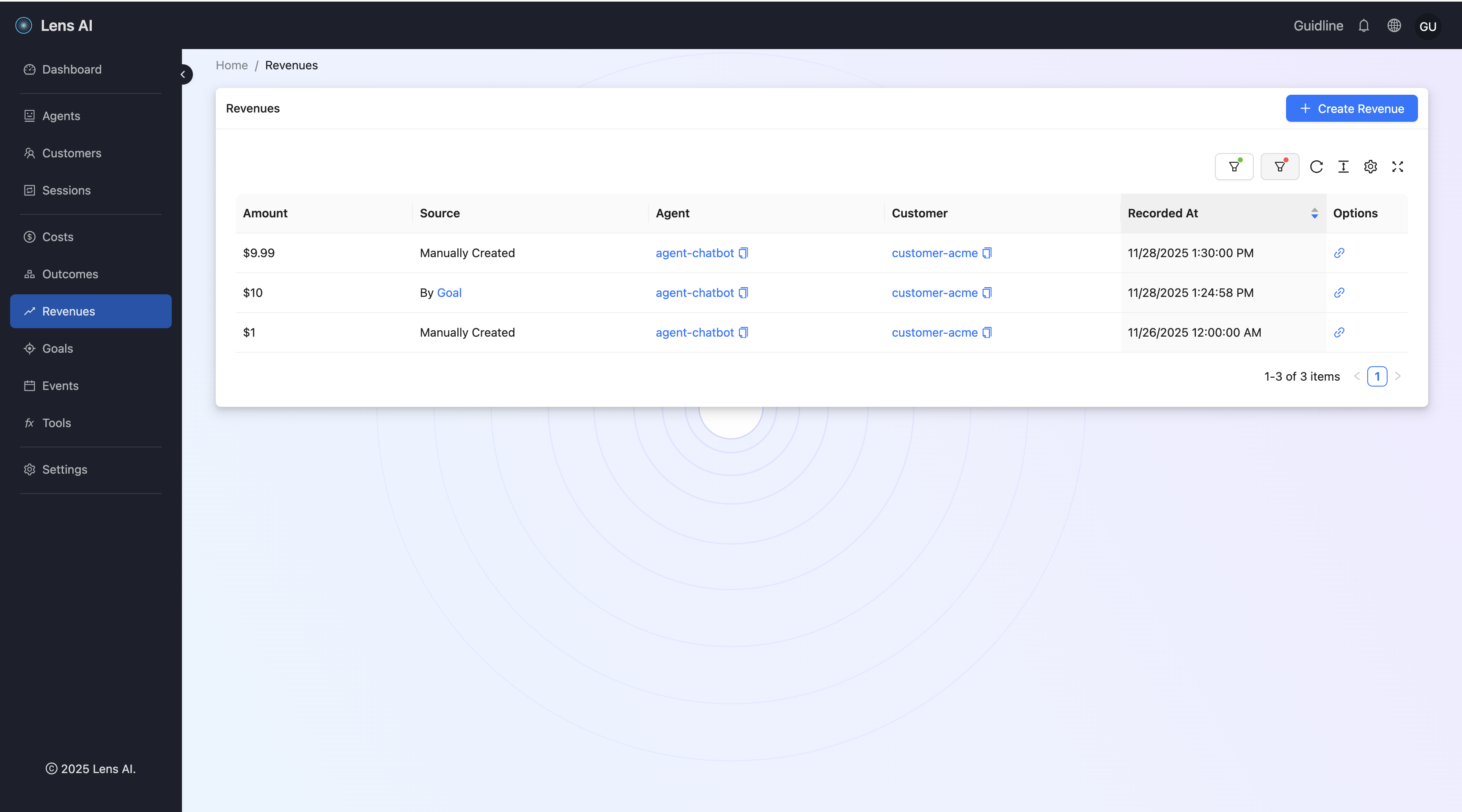
The newly created revenue with the Source 'By Goal' should now appear on the list page.
Navigate to Agents
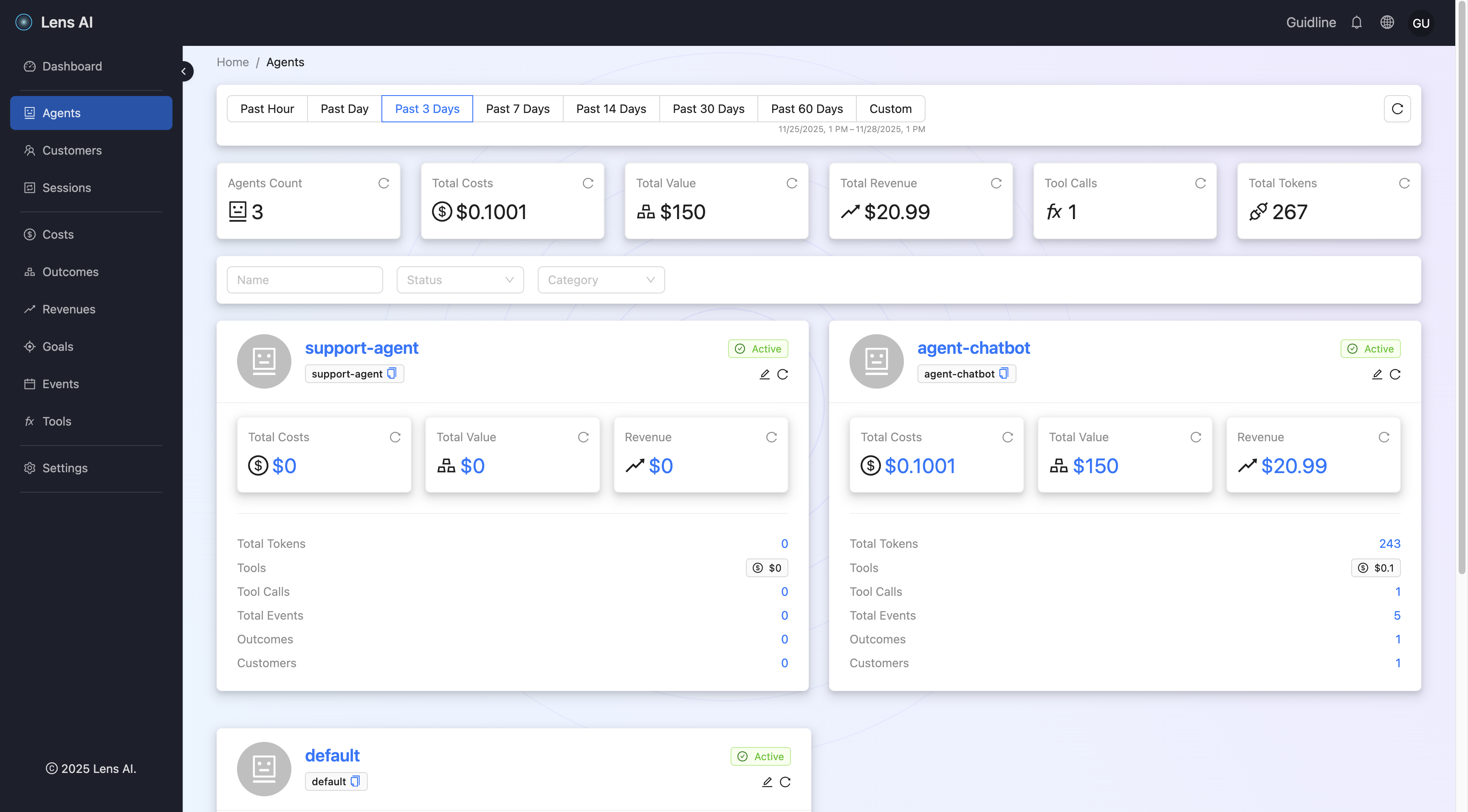
You can now see that your agent-chatbot has a total revenue of $20.99 - the sum of all three revenues.
Summary
That is all for "Getting started". In this tutorial, you:
- Set up cost tracking for various LLM models and providers
- Set up cost tracking for tool calls
- Tracked LLM inference & tool call costs
- Set up revenue tracking using three different definition options.
- Set up tracking valuable outcomes
- Reviewed detailed data on your agent’s total cost, revenue, and outcomes (dollar value) on the Agents page.